How do I list the directories/file on my local drive?

SpiceGuy

Member
Sep 1, 2025
36
1
8
NJ, USA
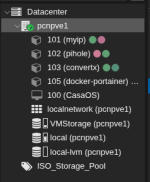
I am running an instance of NetAlertX within my Portainer-Docker LXC and it is the only container (aside from the Portainer/Docker LXC) that I am running in the node. By default Portainer-Docker creates its files in the 'local' drive. This drive is formatted as a "directory" drive.
1788874151260.png

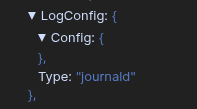
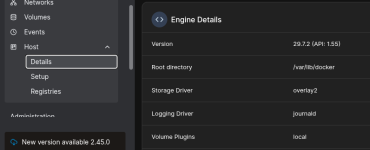
Logs from NetAlertX (within Portainer/Docker) are, by default, written by Docker to
Code:
journald
.
1788873132176.png
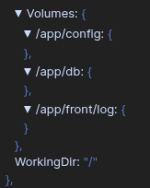
The volumes set up by the NetAlertX are:
1788873290807.png

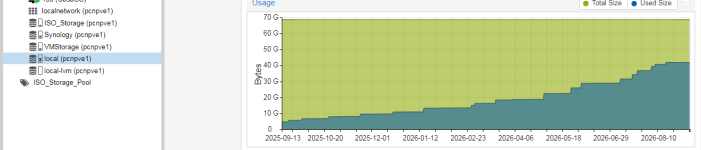
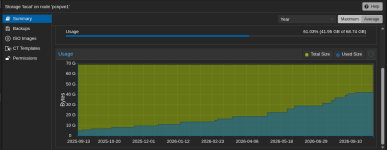
The problem is that my "local" drive is filling up with data and I'm not sure exactly where it is coming from. My investigation points to docker-portainer LXC. All of my other containers have been configured to use other much larger drives and none of those drives are filling up rapidly. This is what my "local" drive looks like now:
1788874498528.png

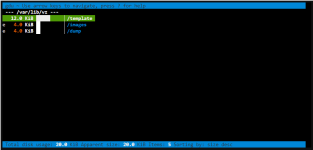
There are no files showing in the Backups, ISO Images or CT Templates windows. (Ex. below) So my guess is this growth of data is from log files.
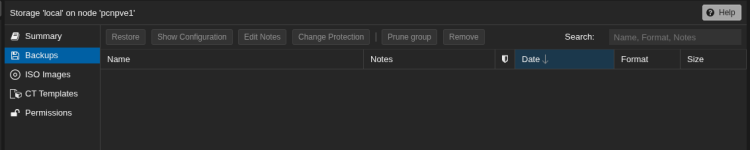
1788874885442.png

Question: Can I use the node Shell to list the directories and files to see what files are getting large? Can someone tell me how to display the directories/files and their sizes in the 'local' drive? I need to know if this is a Proxmox issue, or a Portainer-Docker LXC issue or a NetAlertX docker-compose.file issue and viewing the files will help be determine where they are coming from.

Alternatively, I can use
Code:
du -bsh *
once I'm in the 'local' directory to list the directories/files and sizes but only if I know where in the drive to look.

Thanks!!!
 
cat /etc/pve/storage.cfg gives you the location of your pve storages.

(apt install gdu)
gdu -x /path/to/storage shows you the usage of the storage

(gdu is like ncdu, but much faster)
 
  • Like
Reactions: chughes
Hi Ubu,

Thanks for the fast reply. What gdu is returning doesn't make sense. This is what it says for the 'local' drive:
local drive.PNG

Copying storage.cfg and opening the copy had this information for the local drive:

dir: local path /var/lib/vz content vztmpl,backup,iso

But, the UI for the local drive in the node is this (below). Something is wrong. They don't match.
1788885388676.png
 
Last edited:
I see no difference when using gdu /var/lib/vz than if I use gdu -x /var/lib/vz . The outputs are identical.

local-gdu.PNG

I do see differences using gdu with -x and without -x for some of my other drives but it is the local drive I need to explore. Any other ideas how I can see what that 40Gb of data on my local drive is?
 
I was advised to look a storage.cfg to determine where the local drive is located. That file had the following output for local:
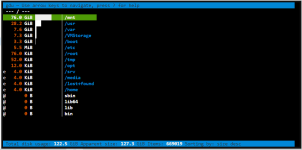
dir: local path /var/lib/vz so that's where I looked. OK, so now I know that root in the shell is the local drive. I just queried root on the shell using gdu / I got this output:

gdu root.PNG

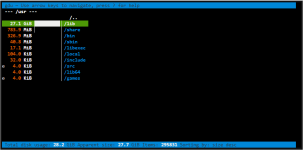
The only drive that has at least 40Gb is /mnt but this directory contains all of the other drives I mounted to proxmox and not the local drive. So, I added up the sizes of the remaining Gb sized directories and it adds to 46.4 Gb. I'm thinking here is where all of that excess data is. I then looked at the /usr directory since it's the next biggest and this was the output:

usr.PNG

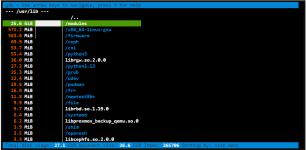
The /lib directory was almost the same size as /usr directory. Looking at the /lib directory I found:

lib.PNG

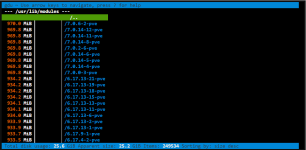
The /modules directory is is only slightly smaller than /lib directory so I looked at that (see below). It looks like there is a collection of old PVE kernels. Is that correct? If yes, do I really need all of these older kernels? How many is it safe to remove and still have a reasonable number to keep as a fallback? Thanks!!

moduled.PNG
 
Last edited:
As explained in the linked thread, unmount/disable the shares and check /mnt. It should be empty. For the old kernels and such apt autopurge or apt apt autopurge '~g|~o|~c' could help. I can't tell you much more without knowing more about your storage.
 
Last edited:
OK, I read the other thread. https://forum.proxmox.com/threads/high-boot-disk-usage-on-proxmox-9-2-node-ext4.183879/ Just some questions first before I do anything. I don't want to make things worse. I'm better than a Proxmox beginner but I wouldn't say I'm a novice either so please bare with me.

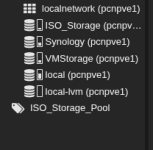
1. I have a few drive shares under mnt that are not all the same. (Actually, ISO_Storage and Synology are their own SSD/HDD drives.)
1788956126229.png

ISO_Storage (directory format) is an SSD that I installed when setting up Proxmox so that's straitforward (no issue here)
Synology (NFS format) is an NFS link to my NAS to store my backups. None of these files resides on the device where I am running Proxmox.
SynologyDS923 (no idea how this is formatted, this one's new to me) is empty and I don't know why it's here but I must need it to maintain the connection to my NAS.
Movies is a complete mystery to me. I have no idea how it's formatted or where this came from. I do have a directory on my Synology called Movies but I do know how it got here.

My last (drive share?? or directory??), VMStorage, (also its own SSD drive formatted as ZFS and attached to my device) is where I keep my ISO files but it is not under /mnt/pve. It looks like it resides as a directory in local. No idea why that is if it's a connected SSD drive.

1788956724504.png

Which of the above drive shares do I need to unmount?

I am guessing that VM Storage is not considered as being "mounted" so I don't need to concern myself with that??? Correct???

2. From the other thread:

Try to disable and unmount all these /mnt mounts and run gdu again without -x.
Also see: https://serverfault.com/questions/5...ng-data-to-an-unmounted-mount-point-directory
Ncdu works too but gdu is faster and is more readable to me.

A bit of advice here, shouldn't I STOP all of my containers first before I unmount these drive shares? If so what's the best way, individually stopping each LXC and VM separately or just shutdown the node?


3. To unmount those drive shares under /mnt/pve/ is there a way from the UI or must it done from the node shell using the following below or should I use unmount -r /path/to/mount instead?

Is it as simple from the UI as going to Datacenter > Storage > 'then select a drive' share > Edit > uncheck: ☑ Enabled?

Or do I need terminal commands like?


unmount /mnt/pve/Synology
unmount /mnt/pve/ISO_Storage
unmount /mnt/pve/SynologyDS923
unmount /mnt/pve/Movies

4. After I unmount the drive share and run my gdu / search I'm guessing the directories/files that were hidden will now appear.

When I've identified the offending files that are filling my local drive share can I remount the unmounted shares immediately before erasing them or must the drive shares stay unmounted to erase them?

The reason is that I am running pihole and I don't want to keep it off line for a long time. Others where I am are needing the internet constantly and I don't want to disrupt them too much.

5. If I need to remount the drive shares through the terminal, how is that done?

Also from the other thread:
Just make sure to apply that chattr +i fix to your unmounted mount points so it doesn't happen again

Is this something I need to do also? If so is it universal for all mounts or done per mount if the latter what's the command look like exactly?
 
Last edited:
To answer most of that I'd need to see at least
Bash:
cat /etc/pve/storage.cfg
lsblk -o+FSTYPE,LABEL,MODEL
df -hT
The idea was that you disable any PVE managed storage that points to /mnt via Datacenter > Storage. Unmounting them manually without that will just have PVE mount it again. Manually managed mounts you need to unmount yourself. This is mostly a network share problem but best to unmount everything if possible.
When a guest relies on that storage you should stop it first, of course. And yes you should run chattr +i /mnt/pathtounmountedmountpointhere for every mount path.
Alternatively you can apparently also set is_mountpoint 1 in the config file to prevent it. This is really something PVE needs to be better at. You should not have to do this.
 
Last edited:
I have the data you need (attached). All of the mounts except for the Synology NSF were mounted during initial configuration just after I installed PVE. If I can unmount all of my shares from Datacenter > Storage by unticking the enable box (see below) then I feel more confident that remounting will not be a problem. Please let me know what steps I will need to do to fix my problem.

1788993161583.png
 

Attachments

Disable ISO_Storage and Synology and check df -hT again. All the /mnt/ mounts should be gone. Afterwards check gdu / again. If there's data in /mnt you found the culprit and should (re)move it before enabling the storages again.
 
Last edited:
This has been a real learning experience. Thanks so far for your help. I plan to do this today but there are 3 lingering questions before I start.

1. I want to get everything running again before I begin deleting files (if possible).
Once I identify and record the filenames of the unwanted extra files to be deleted, can they be deleted AFTER I remount the drive shares or do I have to delete them while the shares are unmounted?
I'm thinking maybe if the files are hidden while the shares are mounted they also might not be accessible for deletion.


2. I looked up chattr -i /path/to/directory and learned that it will make a directory immutable. According to https://oneuptime.com/blog/post/2026-03-02-how-to-set-up-immutable-files-with-chattr-on-ubuntu/view this will do the following:

Protecting Directories​

Setting the immutable attribute on a directory prevents:

  • Creating new files in it
  • Renaming files within it
  • Deleting files from it (even if the files themselves are writable)
  • Adding or removing hard links

I see the benefit in that the data will not begin to uncontrolably expand in the drive share but what if I still need to write new files to those shares. I use ISO_Storage to upload ISO files I plan to use and Synology to backup my containers & VMs. If I make them immutable then I can't do any of that anymore right? That's not good.

I do have two extra shares I didn't know existed and are mounted at mnt/pve they are /SynologyDS923 and /Movies (see above). According to gdu neither has anything in them. Maybe after unmounting and doing gdu I will find hidden stuff. If I make these shares immutable does that mean that they cannot be modified, renamed or deleted through Proxmox only or if I'm logged or SSH into the Synology NAS directly and want to make changes in those directories are they still immutable from the NAS side too? NOTE: I don't think either of these shares "actually" resides on my NAS (but I'm not sure) and are only creations by PVE but I wanted your opinion before I start today. Thanks!!
 
if the files are hidden while the shares are mounted they also might not be accessible for deletion.
Corect.
If I make them immutable then I can't do any of that anymore right? That's not good.
You don't usually want to mount something over a directory that has files in it. This only prevents writing to the base directory, not the mounted share. Synology has no clue about this at all.
 
It looks like the procedure was ineffective. Here are comparisons before disabling shares and after disabling drive shares from Datacenter > Storage > Edit.
This is df- hT before disabling. Note both Synology and ISO_Storage are listed.
1789072631279.png

After I disabled the shares there was no change.
1789073125175.jpeg
However if you look at the Proxmox dashboard those two drive shares are gone.
Before Disabling:
1789073695320.png
After disabling:
1789073657138.png

I think that unmounting and disabling are two differnt things. Can you tell me how to mount and unmount a drive share from the Shell? I will try it that way. Thanks!!
 
Last edited:
It's simply umount /mnt/.... Use the TAB key for command completion. Verify with df -hT again.
I was pretty sure that disabling a network storage would unmount it but I tested it with my CIFS share and it appears I was wrong. Sorry about that.
 
Last edited:
No problem, nobody' perfect. I'm happy that you can help with my problem. OK, great so;

unmount /mnt/pve/ISO_Storage

AND

unmount /mnt/pve/Synology

these will unmount the ext4 and nfs drive shares,

and just so I know my way back after removing unnecessary files I did a little digging and re-mounting is more involved. I found this at: https://forum.proxmox.com/threads/how-to-mount-existing-disk-to-storage.66559/ but I'm not sure if I am applying it correctly:

you just need to find out which sub-partition is required, the following command should help: lsblk -o +FSTYPE,UUID /dev/sdd*
Check out which /dev/sddX partition one is bigger and has a filesystem on it, that's the one you want to use, probably there's only one anyway.

To mount it use the following CLI commands:
Code:
mkdir /mnt/bak
mount /dev/sddX /mnt/bak

(this is only persistent until the next reboot)

You should then be able to browse the files of that storage in "/mnt/bak"

If this was a backup storage managed by PVE it should have the correct directory structure, so you could add that directory as PVE storage configuration with:

pvesm add dir bak --path /mnt/bak --content backup

To make it permanent you need to add a /etc/fstab entry too.

What do you think about my translation below or maybe you know a better way that will absolutely work? Since the first is an ext4 SSD and the other is an NSF share on my NAS they should be very different.

Step 1. Recreate the directories:

mkdir /mnt/pve/ISO_Storage

AND

mkdir /mnt/pve/Synology

Step 2. Mount the shares:

mount /dev/sdc /mnt/pve/ISO_Storage (not sure about this, should I use sdc or scd1, see storage share structure.pdf (above) from using: lsblk -o+FSTYPE,LABEL,MODEL)

AND

mount /172.20.110.156:/volume1/Proxmox /mnt/pve/Synology (I'm really not sure about this one)

THEN THESE TOO?? OR NOT?? (See #9 above) Maybe these mounts (/SynologyDS923 and /Movies) happened automatically?? Should I make directories for them? I didn't make them and they were empty when I looked using gdu /.

mount /172.20.110.156:/volume1/??????? /mnt/pve/SynologyDS923 (No idea how to write this command??)
mount /172.20.110.156:/volume1/??????? /mnt/pve/Movies (I have a share called Movies on my NAS by I have no idea how it got into /mnt/pve )

Step 3. Create a "correct directory storage configuration"

pvesm add dir ISO_Storage --path /mnt/pve/ISO_Storage --content backup
AND
pvesm add dir Synology --path /172.20.110.156:/volume1/Proxmox --content backup

THEN THESE TOO?? OR NOT?? (See #9 above) Same points I made in step 2.

pvesm add dir SynologyDS923 --path /172.20.110.156:/volume1/??????? --content backup (I don't think this is correct. I'm not backing anything up here.)
pvesm add dir Movies --path /172.20.110.156:volume1/?????????? --content backup (I don't think this is correct. I'm not backing anything up here.)

Step 4. Make the backup location permanent (between reboots). (I see nothing in /etc/fstab now so I don't know if this step is necessary.)
1789136813559.png

pvesm add dir ISO_Storage --path /etc/fstab/ISO_Storage
pvesm add dir Synology --path /etc/fstab/Synology

I will continue to research how to re-mount ISO_Storage and remount the NSF share backup to "Proxmox" share directory on my NAS using the terminal while I'm waiting for your reply. Thanks!
 
I didn't say to delete any storage, just disable it. I really don't know why you involve pvesm add or mkdir here or look for other tutorials. PVE will mount the storages again when you enable them. Please just stick to my guided instructions. If you deviate you make this very hard for both of us.
 
Last edited:
Nothing was deleted. I did not use pvesm add or mkdir . I'm trying to search for answers and present you with what I found while you were thinking about what to do. What I posted is a procedure I found from another thread in this forum. I posted it to see if you think that it is the right way to remount or not.

In my last question I asked you how do I remount the drive shares after I unmount them and do my housecleaning. I want to know what to do ahead of time so I can bring the shares back on-line immediately when I am done. Please tell me exactly how to remount the drive shares so I can unmount , delete files and remount in one session. Many thanks!