Guide to Setting Up ARM64 AARCH64 Virtual Machines on Proxmox for Raspberry Pi 5 Development

Anexgohan

Member
Sep 25, 2022
32
8
13
Complete Guide: Setting Up ARM64 Virtual Machines on Proxmox for Raspberry Pi 5 Development
Overview
This guide documents how to create ARM64 virtual machines on Proxmox for Raspberry Pi development and testing. Based on real-world experience setting up VM ID 277 with Debian ARM64 and Raspberry Pi OS.
Prerequisites
  • Proxmox VE 8.x or later
  • ARM64 ISO (Debian ARM64, Raspberry Pi OS ARM64, etc.)
  • Minimum 2GB RAM, 8GB storage
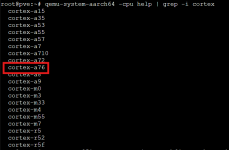
Step 1: Check Available ARM64 CPUs
Code:
qemu-system-aarch64 -cpu help | grep -i cortex
Common available CPUs:
  • cortex-a53 - ARMv8, 4-core
  • cortex-a57 - ARMv8, 4-core (baseline)
  • cortex-a72 - ARMv8, +20% performance
  • cortex-a76 - ARMv8.2, +40% performance (RPi5-like)
Step 2: Create ARM64 VM
Method A: Command Line
Code:
qm create <VM-ID> --name vm-rpios-aarch64 --arch aarch64 --machine virt --cpu cortex-a76 --sockets 1 --cores 4 --memory 2048
qm set <VM-ID> --bios ovmf
qm set <VM-ID> --scsi0 local-lvm:8,format=raw
qm set <VM-ID> --net0 virtio,bridge=vmbr0
Method B: Web Interface
  • Create VM → OS Type: Linux → Version: 6.x - 2.6 Kernel
  • Advanced → Architecture: aarch64
  • BIOS: OVMF (UEFI)
Step 3: Fix CPU Type Issues
Common Error:
Code:
vm <VM-ID> - unable to parse value of 'cpu' - Built-in cputype 'cortex-a76' is not defined
Solutions:
  • Use custom prefix:
    Code:
    qm set <VM-ID> --cpu custom-cortex-a76
  • Use args override:
    Code:
    qm set <VM-ID> --args "-cpu cortex-a76"
  • Remove old setting:
    Code:
    qm set <VM-ID> --delete cpu
Step 4: Complete Configuration
Working <VM-ID>.conf:
Code:
agent: 1
arch: aarch64
args: -cpu cortex-a76
balloon: 2048
bios: ovmf
boot: order=scsi0
cores: 4
efidisk0: local-lvm:vm-<VM-ID>-disk-2,efitype=4m,size=64M
memory: 2048
name: vm-rpios-aarch64
net0: virtio=XX:XX:XX:XX:XX:XX,bridge=vmbr0
ostype: l26
scsi0: local-lvm:vm-<VM-ID>-disk-0,size=8G
scsihw: virtio-scsi-pci
sockets: 1
Step 5: Install ARM64 OS - Two Methods
Method 1: Install Debian ARM64 then Convert to Raspberry Pi OS
  • Download Debian ARM64 ISO:
    Code:
    wget https://cdimage.debian.org/debian-cd/current/arm64/iso-dvd/debian-12.9.0-arm64-DVD-1.iso
  • Attach and install Debian ARM64:
    Code:
    qm set <VM-ID> --scsi1 /path/to/debian-12.9.0-arm64-DVD-1.iso,media=cdrom
  • After Debian installation, convert to Raspberry Pi OS:
    Code:
    # Install Raspberry Pi kernel and packages
    curl -fsSL https://archive.raspberrypi.org/debian/raspberrypi.gpg.key | sudo gpg --dearmor -o /usr/share/keyrings/raspberrypi-archive-keyring.gpg
    echo "deb [signed-by=/usr/share/keyrings/raspberrypi-archive-keyring.gpg] http://archive.raspberrypi.org/debian/ bookworm main" | sudo tee /etc/apt/sources.list.d/raspi.list
    sudo apt update && sudo apt install raspberrypi-kernel raspberrypi-bootloader raspi-config
  • Follow official conversion guides:
    https://www.raspberrypi.com/documentation/computers/linux_kernel.html#kernel
    https://github.com/jiangcuo/pxvirt/wiki/Install-or-upgrade-from-repo
Method 2: Direct Raspberry Pi OS Installation (Recommended)
Step 6: Start VM
Code:
qm start <VM-ID>
Step 7: Post-Installation Setup
Update Operating System
After first boot, update the system packages:
Code:
sudo apt update && sudo apt upgrade -y
sudo apt autoremove -y
Install QEMU Guest Agent
Install for better Proxmox integration:
Code:
sudo apt install qemu-guest-agent -y
sudo systemctl enable qemu-guest-agent
sudo systemctl start qemu-guest-agent
Verify Installation
Check if guest agent is running:
Code:
sudo systemctl status qemu-guest-agent
Troubleshooting
CPU Type Issues
Code:
qemu-system-aarch64 -cpu help | grep cortex
Performance Issues
- Increase memory if needed
- Use virtio drivers for storage/network
Boot Issues
- Verify UEFI firmware: bios: ovmf
- Check ISO is properly attached
- Ensure ARM64 ISO (not x86_64)
Useful Commands
Code:
qm config <VM-ID>
qm showcmd <VM-ID> | grep -E "(arch|machine|cpu)"
qm status <VM-ID>
qm monitor <VM-ID>
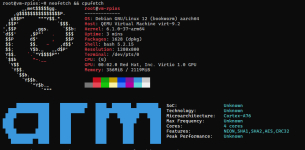
CPU Information Commands
Code:
# Install system information tools
sudo apt install neofetch cpufetch -y
# Display system information
neofetch
# Display detailed CPU information
cpufetch
Notes
  • ARM64 emulation uses software (TCG) - expect 20-40% native performance
  • GPIO and RPi-specific hardware not available
  • Use for software development, not hardware-specific testing
  • Consider real RPi5 for final testing
Based on real-world setup of VM with virtualized cortex-a76 CPU and 4GB RAM
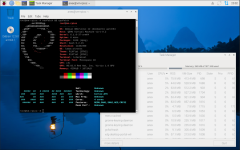
zen_8VaKGCOlAm.png
neofetch && cpufetch
WindowsTerminal_KfKY8QncKi.png

This writeup was formatted and enhanced using AI tools for better readability and completeness.
 
Hi,

i'm a beginner. Normaly i code PLC-Systems.

Anexgohan is it possible to make a backup and send it? i need a RPI for testing something but it don't works. o_O

 
Hi,

i'm a beginner. Normaly i code PLC-Systems.

Anexgohan is it possible to make a backup and send it? i need a RPI for testing something but it don't works. o_O

Hey, I'm sorry I do not want to share my backup for it includes my secrets and passwords and what not, I hope you understand.
What I am willing to do is, help a fellow out, so if it suits you and we can agree on a time, hit me on Discord, and I'll try to guide you on that by screen sharing. How does that sound?
I'll send you my Discord link in a message when/if you confirm.
 
Hi,

@Anexgohan i understand. I don't think on this. Sorry.

So, i tried and failed.
I found the cortex-a76 but after the first comands i got the error message as you can see in the pictures. So i did the troubleshoot with args.


Screenshot 2025-10-07 064849.pngScreenshot 2025-10-07 064925.png

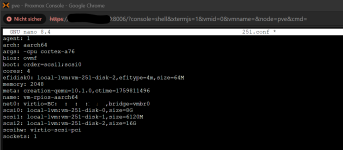
This is my .conf

conf.png

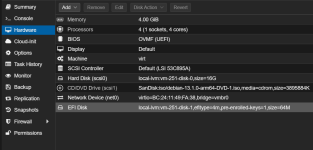
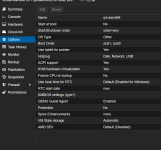
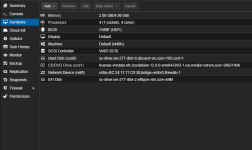
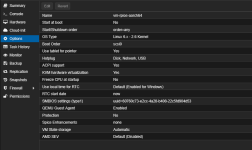
HW and otions


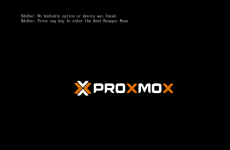
hw.pngopt.pngboot.png

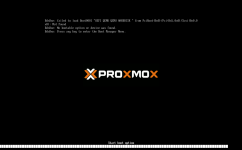
this is what i get when i start the VM


I'm sure, it's a stupid mistake and you laughs about that, but i'm a absolutly beginner.

Thanks for your help

for info, i use proxmox V9.0.10 on BMAX B5A Pro (AMD Ryzen 7 5825U / 48GB RAM)
 

Attachments

  • Screenshot 2025-10-07 071212.png
    Screenshot 2025-10-07 071212.png
    61.4 KB · Views: 6
  • Screenshot 2025-10-07 071100.png
    Screenshot 2025-10-07 071100.png
    19.4 KB · Views: 6
Last edited:
Thank you for the tutorial, but sadly it did not work for me.
I was finally able to at least add the EFI disk without error by installing apt install pve-edk2-firmware-aarch64.
But with now everything set up, it still won't boot because it can't find a bootable device. I actually forgot to enable booting for the disk which seemed to cause the issue, but after enabling it, it still says no bootable device was found!
I matched the disk settings to yours and also changed scsihw: virtio-scsi-single to scsihw: virtio-scsi-pci, but still nothing.

Code:
agent: 1
arch: aarch64
args: -cpu cortex-a76
balloon: 2048
bios: ovmf
boot: order=scsi0
cores: 4
efidisk0: local-lvm:vm-126-disk-1,efitype=4m,size=64M
memory: 2048
name: raspberrypi-os
net0: virtio=XX:XX:XX:XX:XX:XX,bridge=vmbr0
ostype: l26
scsi0: local-lvm:vm-126-disk-0,size=32G
scsihw: virtio-scsi-pci
sockets: 1
 

Attachments

  • Screenshot_20251105_183921.png
    Screenshot_20251105_183921.png
    105.5 KB · Views: 5
Last edited:
hey guys, sorry for not replying earlier I did not get any notification email of your messages, apologies.


apt install pve-edk2-firmware-aarch64
this seem to required

TO BOOT--
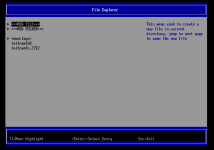
  1. On startup press ESC to enter BIOS. Add a new boot entry to the BIOS.
  2. Boot Maintainence Manager > Boot Options > Add Boot Option
  3. Click bootfs > Click EFI > Debian > Click grubbaa64.efi
  4. Type debianboot in Input the description
  5. Commit and Exit
  6. Change Boot Order and make sure debian is at the top by + and - keys.
  7. Commit and Exit
  8. Save with F10 and exit
  9. Select Continue or Reset to boot into the Raspberry Pi OS.
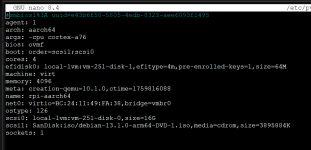
sharing my entire /etc/pve/nodes/<hostname>/qemu-server/277.conf

Bash:
# IP=192.168.100.235
#
# How to set up a Raspberry Pi OS VM on Proxmox--
# https--//forum.proxmox.com/threads/how-to-convert-raspberry-pi-os-images-and-import-to-proxmox.146837/
#
# TO BOOT--
# 1. On startup press ESC to enter BIOS. Add a new boot entry to the BIOS.
# 2. Boot Maintainence Manager > Boot Options > Add Boot Option
# 3. Click bootfs > Click EFI > Debian > Click grubbaa64.efi
# 4. Type debianboot in Input the description
# 5. Commit and Exit
# 6. Change Boot Order and make sure debian is at the top by + and - keys.
# 7. Commit and Exit
# 8. Save with F10 and exit
# 9. Select Continue or Reset to boot into the Raspberry Pi OS.
#
# Troubleshoot--
# - colon is replaced with %3A in comments so used -- to avoid
# - remove cpu--cortex-a76 from the config file if it causes issues. or try cpu--cortex-a72 or cpu--cortex-a57 or cpu--cortex-a53
# - Use cortex-a72 for stability and compatibility
# - Use custom-cortex-a76 if you need ARMv8.2 features or closer RPi5 performance
#
# On proxmox host to verify cpu
# - `qemu-system-aarch64 --version`
# - `qm showcmd 277 | grep -E "(arch|machine|cpu)"`
agent: 1
arch: aarch64
args: -cpu cortex-a76
balloon: 2048
bios: ovmf
boot: order=scsi0
cores: 4
efidisk0: os-drive:vm-277-disk-2,efitype=4m,size=64M
memory: 4096
meta: creation-qemu=9.0.2,ctime=1740361363
name: vm-rpios-aarch64
net0: virtio=BC:24:11:11:C0:38,bridge=vmbr0,firewall=1
numa: 0
ostype: l26
scsi0: os-drive:vm-277-disk-0,discard=on,size=10G,ssd=1
scsi1: truenas-vmdata-nfs:iso/debian-12.9.0-arm64-DVD-1.iso,media=cdrom,size=3863148K
scsihw: virtio-scsi-pci
smbios1: uuid=60760c73-e2cc-4a28-b408-22c5fd904d53
sockets: 1
tags: VM


zen_2025-12-20_08-52-56_IyCJl8cv22.png2025-12-20_08-53-00_twIYbfMzi2.png
 
Last edited:
Hi,

@Anexgohan i understand. I don't think on this. Sorry.

So, i tried and failed.
I found the cortex-a76 but after the first comands i got the error message as you can see in the pictures. So i did the troubleshoot with args.

boot-png.91405

this is what i get when i start the VM
try this I think your almost there:

apt install pve-edk2-firmware-aarch64
this seem to required

TO BOOT--
  1. On startup press ESC to enter BIOS. Add a new boot entry to the BIOS.
  2. Boot Maintainence Manager > Boot Options > Add Boot Option
  3. Click bootfs > Click EFI > Debian > Click grubbaa64.efi
  4. Type debianboot in Input the description
  5. Commit and Exit
  6. Change Boot Order and make sure debian is at the top by + and - keys.
  7. Commit and Exit
  8. Save with F10 and exit
  9. Select Continue or Reset to boot into the Raspberry Pi OS.
 
Last edited:
Thank you for the tutorial, but sadly it did not work for me.
I was finally able to at least add the EFI disk without error by installing apt install pve-edk2-firmware-aarch64.
But with now everything set up, it still won't boot because it can't find a bootable device. I actually forgot to enable booting for the disk which seemed to cause the issue, but after enabling it, it still says no bootable device was found!
I matched the disk settings to yours and also changed scsihw: virtio-scsi-single to scsihw: virtio-scsi-pci, but still nothing.

Code:
agent: 1
arch: aarch64
args: -cpu cortex-a76
balloon: 2048
bios: ovmf
boot: order=scsi0
cores: 4
efidisk0: local-lvm:vm-126-disk-1,efitype=4m,size=64M
memory: 2048
name: raspberrypi-os
net0: virtio=XX:XX:XX:XX:XX:XX,bridge=vmbr0
ostype: l26
scsi0: local-lvm:vm-126-disk-0,size=32G
scsihw: virtio-scsi-pci
sockets: 1

apt install pve-edk2-firmware-aarch64
this seem to required

TO BOOT--
  1. On startup press ESC to enter BIOS. Add a new boot entry to the BIOS.
  2. Boot Maintainence Manager > Boot Options > Add Boot Option
  3. Click bootfs > Click EFI > Debian > Click grubbaa64.efi
  4. Type debianboot in Input the description
  5. Commit and Exit
  6. Change Boot Order and make sure debian is at the top by + and - keys.
  7. Commit and Exit
  8. Save with F10 and exit
  9. Select Continue or Reset to boot into the Raspberry Pi OS.
 
Last edited: