

Introduction:
Recently, I took on the task of installing Proxmox 8.2 in my home lab, excited to leverage its powerful virtualization capabilities. However, the journey wasn’t without its challenges. Here’s a breakdown of the setup, the roadblocks I faced, and the adjustments I made to get Proxmox up and running smoothly.
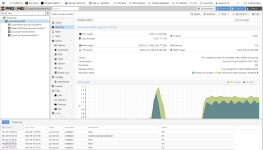
I hope it helps someone.
Recently, I took on the task of installing Proxmox 8.2 in my home lab, excited to leverage its powerful virtualization capabilities. However, the journey wasn’t without its challenges. Here’s a breakdown of the setup, the roadblocks I faced, and the adjustments I made to get Proxmox up and running smoothly.
My Proxmox 8.2 Beast Build
- ASUS Z10PE-D16 WS – A dual-socket powerhouse ready to handle heavy virtualisation workloads!
- Samsung 32GB x 8 ECC RAM – A rock-solid 256GB of ECC memory .
- Intel Arc A380 GPU – Perfect for graphics acceleration.
- WD Red 18TB x 2 HDDs – Massive, reliable storage for virtual machines and media libraries.
- Samsung 980 EVO NVMe SSD – 1TB storage to handle OS and VM caching.
- Samsung 870 EVO 1TB SATA SSD – Extra SSD storage for applications and system backups, possibly a cache drive.
- Noctua NH-U12S Cooler (with free LGA adapter kit upgrade) – Quiet, efficient cooling for CPU #1. works quite well but not as cools as the Warframe
- Frozen Warframe ARGB 240 Cooler – Adds both style and powerful cooling for CPU #2.
- 2 x Intel Xeon E5-2699 v4 CPUs – 44 cores and 88 threads of processing muscle, ready for anything Proxmox can throw at it!
Step 1: Preparing for Installation
Installing a new version of Proxmox often means adjusting for updated requirements, and this version was no exception. Here are some specific steps that made all the difference:- Enabled UEFI – Right out of the gate, I needed to switch to UEFI mode in the BIOS. Without UEFI, the installer couldn’t initiate the process properly and got stuck at the dreaded RAM DISK screen.
- Switched to Text Mode Installation – I ran into an X server initialisation error, thanks to an Intel graphics card issue, which caused the installation to fail on the graphical interface. Switching to text mode resolved this problem and allowed the installation to continue smoothly. I discovered this through TTY2 when I got a failed installation.
- Disabled BIOS Power-Saving Settings – I disabled all power-saving settings in the BIOS. These settings seemed to interfere with the installation process, so turning them off helped with system stability during setup.
- Enabled Above 4G Decoding – While unsure if this setting made a difference, enabling Above 4G Decoding was part of my troubleshooting steps. It’s worth noting if you have a similar setup, as it might help with hardware recognition.
- Resolving Screen Hang at RAM Disk – After enabling UEFI, using text mode, and disabling power-saving features, I finally managed to bypass the screen hanging on the RAM disk initialisation screen.
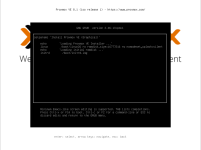
- Editing Boot Parameters – I adjusted the boot parameters to understand the source of some display issues better. Adding nomodeset and removing the quiet and splash options allowed me to see detailed TTY2 outputs. This output helped me identify that the graphics card was not being recognised, which led me to further tweaks. I removed the splash silent setting to see more output.
original screen from this post: https://forum.proxmox.com/threads/proxmox-8-installer-freezes-at-boot.129341/page-3
Step 2: Finalizing the Installation
After working through these BIOS settings and boot adjustments, Proxmox 8.2 was installed within 15 minutes! The entire process underscored to me the importance of fine-tuning BIOS and boot settings for certain hardware configurations, especially when dealing with specific GPUs or power-saving features.Takeaways and Tips
- Always check hardware compatibility for the latest Proxmox version, particularly around graphics cards and UEFI requirements.
- Use Text Mode if you encounter graphical errors during installation. It’s an easy fix that can save time.
- Disable power-saving settings in BIOS if you’re experiencing instability or freezes.
- Boot with nomodeset and remove quiet/splash options to view detailed logs/debug screens and debug output, a lot gets hidden behind the splash scree, whilst pretty, can save a lot of time, which can help identify hardware recognition issues.
Conclusion
While Proxmox 8.2 installation came with some challenges, especially around graphics compatibility and BIOS settings, the setup was ultimately straightforward once I knew what adjustments to make. Hopefully, these steps help anyone facing similar issues get their Proxmox system up and running with minimal frustration.I hope it helps someone.