[SOLVED] Accidentally increased size of a disk for a client. How do I decrease?

gctwnl

Member
Aug 24, 2022
108
20
23
I was trying to increase/decrease the sizes of two LVs in PVE but not succeeding. That is, using the command line with lvresize, I succeeded at decreasing a LV that is mounted inside the PVE host from a VG/LVM on an external LUKS-encrypted) disk, but I did not succeed in increasing another LV that is assigned to a client VM (not running at the moment). I had various problems on the command line e.g. that the LV wasn't activated.

Then I noticed that the GUI has a a disk action 'resize' for the client VM. So, I tried to increase it there, and this succeeded. However, I made a mistake and increased another one (in another VG too). So, I would like to repair that and decrease its size again. I tried entering a negative number in the GUI, but that did not work.

If I try this on the command line on PVE, I get:

Code:
root@pve:~# lvresize --size -500GB --resizefs pve/vm-100-disk-2
fsadm: Cannot get FSTYPE of "/dev/mapper/pve-vm--100--disk--2".
  Filesystem check failed.

pve/vm-100-disk-2 was 500GB, I accidentally increased it to 700GB, but I would like to shrink it by 300GB, so my current resize wish is -500GB. It is scsi3 (/dev/sdd) in the Ubuntu client. I haven't restarted the VM yet, or rebooted the PVE host.
 
@gctwnl
I'm quite confused by your story.
1) Disk was 500 GB. You increased it to 700 GB. Now you would like to shrink it by 300 GB. That would give 700-300=400 GB.
500 != 400.
2) BUT it the command you quote, you're trying to remove 500 GB.
300 != 500.
3) Did you increase the filesystem in the VM as well? If yes, you can't make it lesser than it was, so the failure.
If not, there's no need to use --resizefs option.
4) What is the filesystem type?

So we have at least four mysteries.

Anyway, you may find e.g. this thread useful: https://forum.proxmox.com/threads/shrink-vm-disk.169576/

And, quoting LnxBil: As always: have backups ready! :)
 
  • Like
Reactions: Johannes S
Sorry, I was not perfectly clear. The disk was 500GB and I wanted to reduce it to 200GB (there is 40GB data on it after 3 years), so initially I wanted a 300GB reduction. But I accidentally increased it (via the PVE Web GUI) by 200GB to 700GB (thinking it to be another disk). To get to the desired 200GB, I need to go from 700GB now to 200GB, which is minus 500GB from its current size.

The file system type is ext4

Yes, I did use --resizefs on all my command line attempts

I did increase it from 500GB to 700GB through the PVE Web GUI (VM -> Hardware -> DIsk Action), and I don't know if the GUI uses --resizefs in the background (I assumed it would, but now that I think about it that is silly). I could try to start the VM and try a resize2fs from there, maybe. But that still doesn't get me back from 700GB to the desired 200GB. Starting the VM will make attempts to use the file system, and I am uncertain in which state it is.

I have backups. But having to rebuild data is of course a bit of a pain.
 
AFAIU, you increased using PVE's GUI. If yes, the fs in the VM wasn't increased. Which is good :). Don't start the VM for now.
Now be warned: make yourself very sure which "giga"bytes are used by the GUI and which ones by the lvresize! Binary or decimal? Giga or gibi. You don't want to remove more that you added!

First return to the stable state of the previous size, using lvresize without --resizefs.
Just in case first remove only 100 and see in the GUI what size it'll result with.

Then: to be on the safe side, remove less than intended.

Only when you reach the previous state (or a little bigger disk), you can continue with what you wanted in the first place.

I'm not sure if lvresize with --resizefs supports decreasing the LV.
I would reduce the filesystem by other means, before using lvresize.
I suggest booting the VM with some "live CD" image containing Gparted and decreasing the filesystem.
If successfully, later decrease the LV.
 
AFAIU, you increased using PVE's GUI. If yes, the fs in the VM wasn't increased. Which is good :). Don't start the VM for now.
...
Thanks for helping out, @Onslow.

On PVE, lvdisplay says about the device:
Code:
  --- Logical volume ---
  LV Path                /dev/pve/vm-100-disk-2
  LV Name                vm-100-disk-2
  VG Name                pve
  LV UUID                Wm8zj1-l4Ou-JJgN-riEf-Yo09-Hslx-kENWau
  LV Write Access        read/write
  LV Creation host, time pve, 2023-02-27 23:42:08 +0100
  LV Pool name           data
  LV Status              available
  # open                 0
  LV Size                700.00 GiB
  Mapped size            66.46%
  Current LE             179200
  Segments               1
  Allocation             inherit
  Read ahead sectors     auto
  - currently set to     256
  Block device           252:8

In the GUI, it shows up for the VM as:
Screenshot 2026-01-02 at 21.00.59.png
Inside (Ubuntu) VM, this is mounted on some mount point and used by the VM. Now, the bad news is, this is the main data 'disk' for the Ubuntu client. So, starting that VM will result in a mess (containers etc. starting without access to their data)

So, if I understand it correctly, the resize by the PVE Web GUI has increased the LV but not increased the FS.

On PVE, the lvs entry is:
Code:
  LV              VG          Attr       LSize    Pool Origin Data%  Meta%  Move Log Cpy%Sync Convert
  vm-100-disk-2   pve         Vwi-a-tz--  700.00g data        66.46

What I would like to do is without starting the VM (which mounts this from /dev/sdd ) downsize the FS with resize2fs, then downsize the LV with lvresize.

lsblk says:
Code:
root@pve:~# lsblk
NAME                                          MAJ:MIN RM   SIZE RO TYPE  MOUNTPOINTS
sda                                             8:0    0   1.7T  0 disk 
`-sda1                                          8:1    0   1.7T  0 part 
  `-luks-fa1483bd-f599-4dcf-9732-c09069472150 252:9    0   1.7T  0 crypt
    `-rna--mepdm--1-rna--pbs--mepdm--1        252:11   0   200G  0 lvm   /mnt/pbs-backup-1
nvme0n1                                       259:0    0 931.5G  0 disk 
|-nvme0n1p1                                   259:1    0  1007K  0 part 
|-nvme0n1p2                                   259:2    0   512M  0 part  /boot/efi
`-nvme0n1p3                                   259:3    0   931G  0 part 
  |-pve-swap                                  252:0    0     8G  0 lvm   [SWAP]
  |-pve-root                                  252:1    0    96G  0 lvm   /
  |-pve-data_tmeta                            252:2    0   8.1G  0 lvm   
  | `-pve-data-tpool                          252:4    0 794.8G  0 lvm   
  |   |-pve-data                              252:5    0 794.8G  1 lvm   
  |   |-pve-vm--100--disk--0                  252:6    0    32G  0 lvm   
  |   |-pve-vm--100--disk--1                  252:7    0    32G  0 lvm   
  |   `-pve-vm--100--disk--2                  252:8    0   700G  0 lvm   
  `-pve-data_tdata                            252:3    0 794.8G  0 lvm   
    `-pve-data-tpool                          252:4    0 794.8G  0 lvm   
      |-pve-data                              252:5    0 794.8G  1 lvm   
      |-pve-vm--100--disk--0                  252:6    0    32G  0 lvm   
      |-pve-vm--100--disk--1                  252:7    0    32G  0 lvm   
      `-pve-vm--100--disk--2                  252:8    0   700G  0 lvm

Is there a way I can do this on PVE without booting the VM (with a live image? After all, both are Ubuntus, right? (I am not very deeply experienced with Linux).
 
On PVE, lvdisplay says about the device:
...
LV Size 700.00 GiB

In the GUI, it shows up for the VM as:
View attachment 94570
So they use the same units, fine.
Anyway, don't remove full 200 GiB, just in case. You'll be trying to decrease it more, later, anyway.

Inside (Ubuntu) VM, this is mounted on some mount point and used by the VM. Now, the bad news is, this is the main data 'disk' for the Ubuntu client. So, starting that VM will result in a mess (containers etc. starting without access to their data)
Not really. The data is still there. But as I wrote, don't start it.
So, if I understand it correctly, the resize by the PVE Web GUI has increased the LV but not increased the FS.
Yes, that's what I wrote.
On PVE, the lvs entry is:
Code:
  LV              VG          Attr       LSize    Pool Origin Data%  Meta%  Move Log Cpy%Sync Convert
  vm-100-disk-2   pve         Vwi-a-tz--  700.00g data        66.46

What I would like to do is without starting the VM (which mounts this from /dev/sdd )
I'm a little bit unclear whether this is the same disk...
The VM seems to have 3 "disks" from the PVE: pve-vm--100--disk--0, ...1, ...2.
So why /dev/sdd inside the VM, not /dev/sdc? Maybe "disk" ...2 has two partitions (from the VM's point of view, I don't know). You'll have to inspect it all while booted from live image.

Edit: not rather. Partitions would be sdc1, sdc2 etc. So it doesn't explain why sdd.
You'll have to check it carefully examining from live image session.

downsize the FS with resize2fs, then downsize the LV with lvresize.
Yes.
Is there a way I can do this on PVE without booting the VM (with a live image? After all, both are Ubuntus, right? (I am not very deeply experienced with Linux).
As I wrote: boot the VM with a "live image" having Gparted. I can see Gparted has its own live images at gparted.org (I usually use SystemRescueCd which contains Gparted, among other things).

In case you'll need more assistance, ask. If not I, someone else here surely will help you.
 
Last edited:
I'm a little bit unclear whether this is the same disk...
The VM seems to have 3 "disks" from the PVE: pve-vm--100--disk--0, ...1, ...2.
So why /dev/sdd inside the VM, not /dev/sdc? Maybe "disk" ...2 has two partitions (from the VM's point of view, I don't know). You'll have to inspect it all while booted from live image.
Thanks.

sdb is from a different VG on a different disk (external RAID1). This is earlier on the client when it was still running:
Code:
$ lsblk
NAME                      MAJ:MIN RM  SIZE RO TYPE MOUNTPOINTS
sda                         8:0    0   32G  0 disk
├─sda1                      8:1    0    1M  0 part
├─sda2                      8:2    0    2G  0 part /boot
└─sda3                      8:3    0   30G  0 part
  └─ubuntu--vg-ubuntu--lv 253:0    0   15G  0 lvm  /
sdb                         8:16   0  500G  0 disk
└─sdb1                      8:17   0  500G  0 part /mnt/ServerBackup
sdc                         8:32   0   32G  0 disk
└─sdc1                      8:33   0   32G  0 part /var/lib/docker
sdd                         8:48   0  500G  0 disk
└─sdd1                      8:49   0  500G  0 part /mnt/ServerData

I will follow your suggestion and use SystemRescue. I have already uploaded it to proxmox and put in on CD in the hardware for the VM and made the CD the first in boot order, so I guess it will boot from that SystemRescue iso. That's going to wait for tomorrow.

I do have a question. There is something I can't get my head around (and makes me worry that I don't understand this correctly and can make big mistakes). As I understand it the whole PV/VG/LV structure exists at host (pve) level. On the client the LVs are SCSI devices. How is it then possible to use a client to resize LVs that live at the host level (or use parted for that matter)?
 
How is it then possible to use a client to resize LVs that live at the host level (or use parted for that matter)?
It isn't :). From the VM's point of view, it's a disk. The VM doesn't know that's a LV and it doesn't care.

In the VM you'll shrink the filesystem which during the normal work is mounted at /mnt/ServerData but during the live image session will not be mounted at all (don't mount it anywhere).
Then you'll shrink /dev/sdd1 partition.
In practice Gparted will do these two operations seemingly together. You'll move the bar, click "apply" or similar.

To make sure that the filesystem is in a good condition, you can fsck.ext4 /dev/sdd1 before shrinking and repeat it after the shrinking.

After that, the partition /dev/sdd1 will be decreased but the disk /dev/sdd will be of the same size as before.
You'll be able to verify that with fdisk -l or lsblk
Then you can shutdown the live image session.

Shrinking the disk (i.e. the LV) you'll do from the PVE level with lvresize.
Be cautious here! You can't make it lesser than the partition /dev/sdd1 or you'll damage the data. In practice, it's always good to leave some security margin.

After executing lvresize you can boot the VM from the live image once again and confirm the "disk" /dev/sdd is in fact decreased.

If all is OK, you will be able to start the VM in the normal way.

If you need more help, you can ask.
Don't act in hurry with such operations.
Make notes what you're doing. If you encounter a problem, we will need the details to be able to help you.
If you don't encounter a problem, the notes will be a valuable help for you in future.

Even if you spoil the VM or the data, it's not a disaster because you have backup.
(Of course don't try doing such changes without having a fresh good backup). :)

Good luck!
 
Last edited:
  • Like
Reactions: UdoB
Thank you for your great help. I'll put the question on SOLVED when I'm done.

(I should have realised sdd1 is a partition in sdd and figured it out).

I'm thinking about using UNIT as 204798M (200GB minus 2MB, 1MB should be enough I guess) for sdd1/FS and 200G for sdd.
 
After executing lvresize you can boot the VM from the live image once again and confirm the "disk" /dev/sdd is in fact decreased.
Hmm, that wasn't the case. It was still reported 800G and another one was 300G. Eek! Something went horribly wrong?

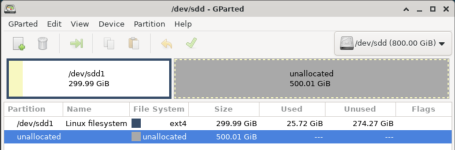
SystemRescue now says /dev/sdd1 is 299.99GiB of which 25.72 GiB is used (that is correct after having resized it with Gparted.
Screenshot 2026-01-03 at 14.01.02.png
This is after my lvresize command when the machine was shut down.

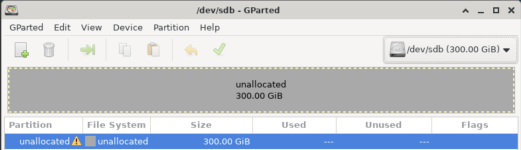
/dev/sdb is reported as 300GB(!) unallocated. EEK?
Screenshot 2026-01-03 at 14.03.12.png
It seems SystemRescue cannot handle what PVE is throwing at it as device?

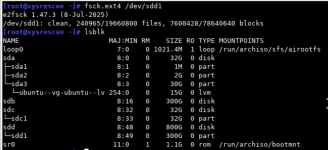
CLI on SystemRescue (can't copy/paste text sadly):
Screenshot 2026-01-03 at 14.18.23.png


PVE Web GUI says:
Screenshot 2026-01-03 at 13.54.31.png
So SystemRescue and PVE have different ideas about the states of /dev/sdb and /dev/sdd. PVE GUI is wrong about scsi3 (/dev/sdd on the client) as it has been reduced to 300G.

On the command line, PVE says:
Code:
root@pve:~# df
Filesystem                                   1K-blocks     Used Available Use% Mounted on
udev                                          16169532        0  16169532   0% /dev
tmpfs                                          3240760     3328   3237432   1% /run
/dev/mapper/pve-root                          98497780 18683896  74764336  20% /
tmpfs                                         16203792    53040  16150752   1% /dev/shm
tmpfs                                             5120        4      5116   1% /run/lock
efivarfs                                           192      121        67  65% /sys/firmware/efi/efivars
/dev/nvme0n1p2                                  523248      344    522904   1% /boot/efi
/dev/fuse                                       131072       32    131040   1% /etc/pve
tmpfs                                          3240756        0   3240756   0% /run/user/0
/dev/mapper/rna--mepdm--1-rna--pbs--mepdm--1 205314024 39803616 155008264  21% /mnt/pbs-backup-1
root@pve:~# vgs
  VG          #PV #LV #SN Attr   VSize    VFree 
  pve           1   6   0 wz--n- <931.01g  15.99g
  rna-mepdm-1   1   2   0 wz--n-   <1.75t 788.36g
root@pve:~# lvs
  WARNING: Thin volume pve/vm-100-disk-2 maps <465.25 GiB while the size is only 300.00 GiB.
  LV              VG          Attr       LSize    Pool Origin Data%  Meta%  Move Log Cpy%Sync Convert
  data            pve         twi-aotz-- <794.79g             64.62  2.14                           
  root            pve         -wi-ao----   96.00g                                                   
  swap            pve         -wi-ao----    8.00g                                                   
  vm-100-disk-0   pve         Vwi-aotz--   32.00g data        52.66                                 
  vm-100-disk-1   pve         Vwi-aotz--   32.00g data        98.32                                 
  vm-100-disk-2   pve         Vwi-aotz--  300.00g data        100.00                                 
  rna-pbs-mepdm-1 rna-mepdm-1 -wi-ao----  200.00g                                                   
  vm-100-disk-0   rna-mepdm-1 -wi-ao----  800.00g                                                   
root@pve:~# lsblk
NAME                                          MAJ:MIN RM   SIZE RO TYPE  MOUNTPOINTS
sda                                             8:0    0   1.7T  0 disk 
`-sda1                                          8:1    0   1.7T  0 part 
  `-luks-fa1483bd-f599-4dcf-9732-c09069472150 252:9    0   1.7T  0 crypt
    |-rna--mepdm--1-vm--100--disk--0          252:10   0   800G  0 lvm   
    `-rna--mepdm--1-rna--pbs--mepdm--1        252:11   0   200G  0 lvm   /mnt/pbs-backup-1
nvme0n1                                       259:0    0 931.5G  0 disk 
|-nvme0n1p1                                   259:1    0  1007K  0 part 
|-nvme0n1p2                                   259:2    0   512M  0 part  /boot/efi
`-nvme0n1p3                                   259:3    0   931G  0 part 
  |-pve-swap                                  252:0    0     8G  0 lvm   [SWAP]
  |-pve-root                                  252:1    0    96G  0 lvm   /
  |-pve-data_tmeta                            252:2    0   8.1G  0 lvm   
  | `-pve-data-tpool                          252:4    0 794.8G  0 lvm   
  |   |-pve-data                              252:5    0 794.8G  1 lvm   
  |   |-pve-vm--100--disk--0                  252:6    0    32G  0 lvm   
  |   |-pve-vm--100--disk--1                  252:7    0    32G  0 lvm   
  |   `-pve-vm--100--disk--2                  252:8    0   300G  0 lvm   
  `-pve-data_tdata                            252:3    0 794.8G  0 lvm   
    `-pve-data-tpool                          252:4    0 794.8G  0 lvm   
      |-pve-data                              252:5    0 794.8G  1 lvm   
      |-pve-vm--100--disk--0                  252:6    0    32G  0 lvm   
      |-pve-vm--100--disk--1                  252:7    0    32G  0 lvm   
      `-pve-vm--100--disk--2                  252:8    0   300G  0 lvm

I am 100% certain I gave the correct lvresize command in PVE as I typed it first in my log and then copy-pasted it to the shell: lvresize -L 307200M pve/vm-100-disk-2

Time for a shutdown of the VM and a reboot of PVE and a restart of the VM with SystemRescue
 
In addition: might I not have to change /etc/pve# cat /etc/pve/qemu-server/100.conf? It seems to hold config data for my VM and the lvresize of course hasn't updated this. When I increased the size of an LV via the GUI, it was of course updated. But the lvresize of scsi3 was done on the command line.

Code:
root@pve:/etc/pve# cat /etc/pve/qemu-server/100.conf
balloon: 4096
boot: order=ide2;scsi0;net0
cores: 4
ide2: local:iso/systemrescue-12.03-amd64.iso,media=cdrom,size=1193696K
memory: 20480
meta: creation-qemu=7.0.0,ctime=1665090989
name: rna-mainserver-vm
net0: virtio=A6:97:9A:EF:7E:EE,bridge=vmbr0,firewall=1
numa: 0
ostype: l26
scsi0: local-lvm:vm-100-disk-0,size=32G
scsi1: rna-mepdm-1:vm-100-disk-0,backup=0,size=800G
scsi2: local-lvm:vm-100-disk-1,backup=0,size=32G
scsi3: local-lvm:vm-100-disk-2,backup=0,size=700G
scsihw: virtio-scsi-pci
smbios1: uuid=7b07bbf7-d3d4-4252-85bb-8a4f0b720f82
sockets: 1
usb0: host=0403:6001
vmgenid: d0cb1769-021e-4b1d-ba6f-28a3d5e7eeb1
 
Last edited:
@gctwnl I admit I'm confused by the current state. Among others by the fact that now lvs command in the PVE shows two disks named vm-100-disk-0.
For the 100.conf file: you're most likely right that it requires updating as well.
I'm sorry that at the moment I have no precise instructions how to proceed and that my help isn't complete and it might be misleading.

I've noticed that you created a new thread to find the solution of this new state. I hope you'll get help.
If all else fails you have backups :).
 
@gctwnl I admit I'm confused by the current state. Among others by the fact that now lvs command in the PVE shows two disks named vm-100-disk-0.
For the 100.conf file: you're most likely right that it requires updating as well.
I'm sorry that at the moment I have no precise instructions how to proceed and that my help isn't complete and it might be misleading.

I've noticed that you created a new thread to find the solution of this new state. I hope you'll get help.
If all else fails you have backups :).
I think I may have found the problem. LVs have been offered to the client and the client has created partition tables on these. These are no longer valid. I need to repair these so they fit with the data in the LV and I'll probably get my FS back. see https://forum.proxmox.com/threads/pve-and-client-have-different-ideas-about-disk-size.178657/
 
@gctwnl I wouldn't like to increase the state of vagueness here, so I'm not directly recommending any new changes without advice from more experienced users. Use at your risk.

But if you read man qm in the PVE and make additional research, you optionally may want to try and note the results of the command:
qm disk rescan --dryrun 1 --vmid 100
which, quoting the docs, means:

Code:
Rescan all storages and update disk sizes and unused disk images.

--dryrun <boolean> (default = 0)
    Do not actually write changes out to VM config(s).

--vmid <integer> (100 - 999999999)
    The (unique) ID of the VM.

I must say I find the docs insufficient here. It's unclear for me about the source of this "updating". Current lvdisplay output etc. or something else.
So I don't know whether if you would omit --dryrun 1 then state of the host and the VM will improve or whether the mess will increase.
 
Code:
root@pve:~# qm disk rescan --dryrun 1 --vmid 100
NOTE: running in dry-run mode, won't write changes out!
rescan volumes...
  WARNING: Thin volume pve/vm-100-disk-2 maps 499556286464 while the size is only 322122547200.
  WARNING: Thin volume pve/vm-100-disk-2 maps 499556286464 while the size is only 322122547200.
root@pve:~# qm config 100
balloon: 4096
boot: order=scsi0
cores: 4
ide2: local:iso/systemrescue-12.03-amd64.iso,media=cdrom,size=1193696K
memory: 20480
meta: creation-qemu=7.0.0,ctime=1665090989
name: rna-mainserver-vm
net0: virtio=A6:97:9A:EF:7E:EE,bridge=vmbr0,firewall=1
numa: 0
ostype: l26
scsi0: local-lvm:vm-100-disk-0,size=32G
scsi1: rna-mepdm-1:vm-100-disk-0,backup=0,size=800G
scsi2: local-lvm:vm-100-disk-1,backup=0,size=32G
scsi3: local-lvm:vm-100-disk-2,backup=0,size=300G
scsihw: virtio-scsi-pci
smbios1: uuid=7b07bbf7-d3d4-4252-85bb-8a4f0b720f82
sockets: 1
usb0: host=0403:6001
vmgenid: d0cb1769-021e-4b1d-ba6f-28a3d5e7eeb1
It warns about scsi3 (/dev/sdd), the one on the internal disk that I downsized, so I researched a bit and one should regularly trim thin volumes. Which meant for me to run fstrim on /dev/sdd after having set the discard flag on that disk to on in PVE's VM config.:
Code:
# fstrim -v /mnt/ServerData
/mnt/ServerData: 271 GiB (290975653888 bytes) trimmed
Which looks hopeful for that other issue. Sadly, though, after this trim:
Code:
# qm disk rescan --vmid 100
rescan volumes...
  WARNING: Thin volume pve/vm-100-disk-2 maps 499556286464 while the size is only 322122547200.
  WARNING: Thin volume pve/vm-100-disk-2 maps 499556286464 while the size is only 322122547200.
There is something that caught my eye, though. On the client:
Code:
sdb                         8:16   0  300G  0 disk
sdc                         8:32   0   32G  0 disk
└─sdc1                      8:33   0   32G  0 part /var/lib/docker
sdd                         8:48   0  800G  0 disk
└─sdd1                      8:49   0  300G  0 part /mnt/ServerData
Now, what is weird is that /dev/sdd (scsi3) shows the size of /dev/sdb (scsi1) and vice versa.
 
have read that in Linux, the /dev/sdX names are unstable.
That's right. It's a fact at least for physical disks. It crossed my mind that this could be the reason of strange symptoms which you observe. But I quickly excluded it because I've thought that this unstability is not present in case of virtual disks, because the hypervisor hands out logical volumes in a deterministic way. But maybe not, I don't know.

In this moment I may give you a hint how to identify which LV is which "drive" in the VM.

In the PVE shell execute for the first uncertain LV (I don't remember which it is; let's for example say this is ...-disk-0)
strings /dev/mapper/pve-vm--100--disk--0 | less
Unless the disk is encrypted, you should see various human-readable textual strings, some of them are distinctive (you can press Space a few times for some explicit patterns).

Then in the VM execute:
strings /dev/sdb | less
and also observe the texts.

Next do the same operations for the second uncertain LV and for the /dev/sdd

Then compare the four outputs for identical texts.

If you find the same unique texts in ...-disk-0 and in /dev/sdb, then the mapping is
pve-vm--100-disk--0 <---------> sdb
If in ...-disk-0 and in /dev/sdd, then the mapping is
pve-vm--100-disk--0 <---------> sdd