

Install Proxmox on the Raspberry Pi 4

taker18

New Member
Aug 8, 2021
5
1
3
46
I am getting this error:
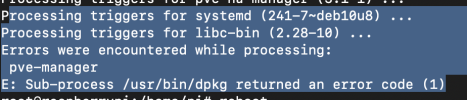
Screen Shot 2021-08-07 at 4.51.42 PM.png

according to this Tutorial https://www.bachmann-lan.de/proxmox-ve-auf-dem-raspberry-pi-4-installieren/
it possible to install Proxmox on raspi4
BU I am getting this
BUT I am getting an error most like has something to do with e hostname and IP in / etc / hosts

I didn't understand what to do in this step in the Tutorial :


"The SSD on the Pi will now boot from USB. Update the system, set a fixed IP and enter the hostname and IP in / etc / hosts and restart the Pi.
Without the entry in the hosts file, the installation will fail!

root @ pimox: ~ # apt update
root @ pimox: ~ # apt upgrade -y

root @ pimox: ~ # vi / etc / hostname
pimox

root @ pimox: ~ # vi / etc / hosts
# 127.0.1.1 pimox <- remove!
192.168.50.64 pimox.bachmann.lan pimox

root @ pimox: ~ # vi /etc/dhcpcd.conf
interface eth0
static ip_address = 192.168.50.64 / 24
static routers = 192.168.50.1
static domain_name_servers = 192.168.50.1"


if someone can explain a nit what should be done, most likely because i skipped this step
 
Did you commented out the "127.0.1.1 pimox" and added a new line with your hosts static IP and domain? You have already quoted that the install will fail if you don't do this.
 
Last edited:
Did you commented out the "127.0.1.1 pimox" and added a new line with your hosts static IP and domain? You have already quoted that the install will fail if you don't do this.

yes I didn't and the reason that I didn't because I am not sure how to do that. is it turning the rasperrypi to static IP https://www.makeuseof.com/raspberry-pi-set-static-ip/ , or change the hostname https://howchoo.com/pi/how-to-change-the-hostname-of-your-raspberry-pi to the IP address. or both

I think it sound to me I need to do both
 
You set the static IP by editing /etc/dhcpcd.conf and set the hostname by editing /etc/hostname. /etc/hosts is used for the resolution of host names. Here the IP and hostname must match the values you set set in the other 2 files (and you need to choose a domain). If you don't set this up correctly stuff like the proxmox webui wont work.
 
You set the static IP by editing /etc/dhcpcd.conf and set the hostname by editing /etc/hostname. /etc/hosts is used for the resolution of host names. Here the IP and hostname must match the values you set set in the other 2 files (and you need to choose a domain). If you don't set this up correctly stuff like the proxmox webui wont work.
yes you are correct, I found a better Tut to follow https://wiki.toenniges.net/index.ph...y_Pi_(Pimox)&mobileaction=toggle_view_desktop.

Thank you for clarifying this out.
 
Installing Proxmox VE on Raspberry Pi 4 / 5 (Debian 13 Trixie)

In this guide, we show you how to install Proxmox VE (ARM64) on your Raspberry Pi step-by-step.

---------------------------------------------------
PREPARATION (Imager & SSH)
---------------------------------------------------
1. Open Raspberry Pi Imager.
2. Select OS: "Raspberry Pi OS Lite (64-bit)" (based on Debian Trixie).
3. Select the SD card as storage and click "NEXT".
4. In the "Apply OS customization?" pop-up, click "EDIT SETTINGS":
- Enable SSH (password authentication)
- Set username & password
- Configure Wi-Fi/network (if not using LAN)
5. Save settings and write to the card.

---------------------------------------------------
INSTALLATION COMMANDS
---------------------------------------------------

1. Connect to the Pi via SSH (PowerShell / Terminal):
ssh username@rasberrypipve.local

(Optional) If SSH access is denied due to old keys:
ssh-keygen -R rasberrypipve.local

2. Switch to root:
sudo su

3. Display the Raspberry Pi's IP address:
hostname -I

4. Add the GPG key for the Proxmox repository:
curl -sL https://mirrors.lierfang.com/pxcloud/lierfang.gpg | gpg --dearmor -o /usr/share/keyrings/lierfang.gpg

5. Add the Proxmox package repository:
echo "deb [arch=arm64 signed-by=/usr/share/keyrings/lierfang.gpg] https://mirrors.lierfang.com/pxcloud/pxvirt trixie main" > /etc/apt/sources.list.d/pveport.list

6. Update package lists & install Proxmox VE:
apt update && apt install proxmox-ve -y

7. Reboot the system:
reboot

---------------------------------------------------
ACCESS PROXMOX WEB INTERFACE
---------------------------------------------------
URL in browser: https://<YOUR-PI-IP>:8006
(or https://rasberrypipve.local:8006)

Login:
User: root
Password: <Your Linux password>
 
Though clearly unsupported by PVE (as specified in the release), the lately-released official PVE for arm, seems to somewhat "accommodate" a pi-installation, as general web-searching seems to show. (Even a user or two on these forums seems to have been successful!). You probably need some tweaks/workarounds, but I would prefer those over some unsupported & questionable PVE fork.
 
  • Like
Reactions: Johannes S