Proxmox VE 8 upgrade to 9 - how to upgrade machine version on Windows guest

Jul 29, 2023
9
2
8
Germany
Hi all,

I am in the progress of upgrading from 8 to 9.
One of the guest VM is running the following machine version:
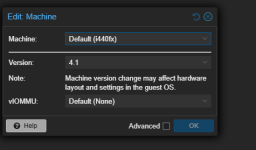
1789632808398.png

However according to the upgrade guide the support for this is (or might be - the warning is a bit unclear) dropped in v9.
When I try upgrading the machine version to anything newer than 4.1, the OS (Windows Server 2019) brings up a weird boot menu instead of the regular login screen on boot.
So I am at a loss as to what to do.
This is the warning I get in the "pve8to9 --full" tool:

Code:
WARN: VMs with the following IDs have an old machine version configured. The machine version might need to be updated to be able to start the VM in Proxmox VE 9:
        102

How can I upgrade the machine version so a current one without breaking my Windows installation?

Best regards
mf_2
 
Hi @mf_2

thanks for posting on the forum!

For reference on the "maybe" of pve8to9:
https://pve.proxmox.com/pve-docs/pve-admin-guide.html#_qemu_machine_version_deprecation
https://pve.proxmox.com/wiki/QEMU_Machine_Version_Upgrade

In short for PVE 9 in its current state QEMU 11.0 is the shipped version which supports machines with version 5.1 and up.

Since a machine version upgrade changes the way the virtual hardware is presented to the OS there might be issues as you describe them after such a change.

Can you give additional details on the failure mode after the version upgrade? A screenshot maybe?

Best regards
Jonas
 
  • Like
Reactions: Wichets and mf_2
Hi Jonas,
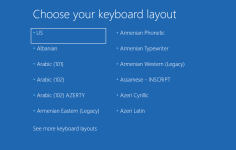
when I set it to 5.1 I get this after the loading screen instead of the lock screen:

1789679454533.png

As this is my domain controller I am messing with, I never dared to go past it and just reverted back to v4.1. How do I avoid this screen or is it harmless? Do I have to change anything in the VM's BIOS?
 
As this is my domain controller I am messing with, I never dared to go past it and just reverted back to v4.1.
Please make sure you have good/restorable backups. Then you could do a little experiment like confirming the keyboard layout safely. Or at least clone or snapshot your VM for this experiment (but don't run both at the same time) when the VM is not in active use.

Windows does not handle (virtual) hardware changes very well. Sometimes you just need to reinstall. It is expected that the way virtual hardware (like the keyboard) is connected differently in different Machine Versions. Windows might detect them as new hardware, and you proceed normally as if you replaced the hardware (like the keyboard).

Make sure you can restore or roll-back changes. Maybe plan the restore of a backup as a disaster recovery drill? Get some experience with this to build confidence.

If you don't dare to change anything then no progress can be made. Maybe talk to Windows administrators on Windows Server forums about changing (virtual) hardware as they might have more experience with this kind of issues.

EDIT: Please tell me that you do make backup, and test backups, and practice disaster recovery every once in a while. Otherwise, you are already one mistake/disaster away from just installing a new Windows domain controller on a fresh VM, which would also solve this issue (of not being able to update the virtual hardware).
 
Last edited:
Thank you for the speedy reply. I did not even think about the cloning approach and I will give that a try.
Yes, I do make daily backups and I also do an annual data recovery exercise (and an unprompted one last year due to ransomware ...).
You are absolutely right about the importance of backups!
 
  • Like
Reactions: leesteken
Good to hear. I understand that you need to do all of this during inconvenient times as to not disturb the users, and "experimenting" does not give you a proper timeline beforehand.

Machine versions typically only change the way virtual hardware is connected but Windows is known to be (which means the information is probably somewhere on the internet) difficult about it. Getting some input from knowledgeable Windows administrators would be valuable on this. Maybe search for QEMU (the underlying technology) instead of Proxmox to see if someone already dealt with this and was nice enough to share it.
 
Also is the VM booting off IDE or SCSI?

Do you still have an iso connected in the vm settings? That looks like the installer.
SCSI.
There is no ISO mounted in either of the two virtual DVD drives.

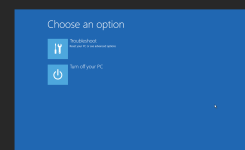
After selecting German on the first screen I now get this in my clone VM:

1789720460132.png

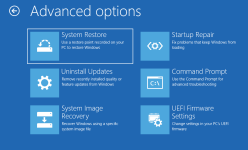
Since it is just a clone I will plow ahead:

1789720495309.png

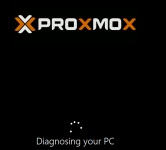
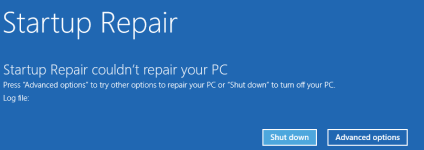
Let's try startup repair:

1789720510995.png

We shall see ...
 
Nope:

1789720671809.png

Advanced Options loops back to the first screen after the keyboard layout.
Let's check out UEFI:
When I boot into the QEMU hard disk I get the blue menu again.
When I boot into Windows Boot Manager I get the same thing.
When I enter the UEFI Firmware BIOS I can change a bunch of settings, but no idea what to do there.

Is there a way to tell Windows to deal with any new hardware it finds and just install the needed drivers and go on? I don't see why Windows should have so many issues with that.