

I have my PVE boot drive setup as mirrored zfs pool. My boot pool (rpool) is showing as degraded and the "Disks" panel is showing only one NVMe drive while LSBLK is showing both the drives (see output below) . Both these are new drives and same brand/model. Recent SMART report didn't show any issues. I am new to Proxmox so can someone help me troubleshoot this. I have only two M.2 slots in my motherboard and both are populated with these two drives.
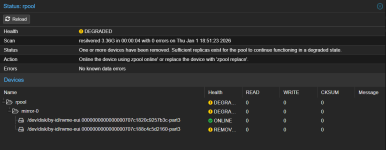

Output of LSBLK. Note the line nvme1n1 259:4 0 0B 0 disk
Output of proxmox-boot-tool status
Output of efibootmgr -v
Output of LSBLK. Note the line nvme1n1 259:4 0 0B 0 disk
Code:
nvme0n1     259:0    0 953.9G  0 disk
├─nvme0n1p1 259:1    0  1007K  0 part
├─nvme0n1p2 259:2    0     1G  0 part
└─nvme0n1p3 259:3    0   952G  0 part
nvme1n1     259:4    0     0B  0 disk
├─nvme1n1p1 259:5    0  1007K  0 part
├─nvme1n1p2 259:6    0     1G  0 part
└─nvme1n1p3 259:7    0   952G  0 part
Output of proxmox-boot-tool status
Code:
root@pve:~# proxmox-boot-tool status
Re-executing '/usr/sbin/proxmox-boot-tool' in new private mount namespace..
System currently booted with uefi
2E41-A85D is configured with: uefi (versions: 6.14.11-5-pve, 6.17.2-2-pve, 6.17.4-2-pve)
mount: /var/tmp/espmounts/2E41-D98C: can't read superblock on /dev/nvme1n1p2.
       dmesg(1) may have more information after failed mount system call.
mount of /dev/disk/by-uuid/2E41-D98C failed - skipping
Output of efibootmgr -v
Code:
root@pve:~# efibootmgr -v
BootCurrent: 0003
Timeout: 1 seconds
BootOrder: 0003,0002,0004,0005
Boot0002* Linux Boot Manager    HD(2,GPT,251009e7-49fb-4bc4-9c1f-b2add098686c,0x800,0x200000)/File(\EFI\systemd\systemd-bootx64.efi)
      dp: 04 01 2a 00 02 00 00 00 00 08 00 00 00 00 00 00 00 00 20 00 00 00 00 00 e7 09 10 25 fb 49 c4 4b 9c 1f b2 ad d0 98 68 6c 02 02 / 04 04 46 00 5c 00 45 00 46 00 49 00 5c 00 73 00 79 00 73 00 74 00 65 00 6d 00 64 00 5c 00 73 00 79 00 73 00 74 00 65 00 6d 00 64 00 2d 00 62 00 6f 00 6f 00 74 00 78 00 36 00 34 00 2e 00 65 00 66 00 69 00 00 00 / 7f ff 04 00
Boot0003* Linux Boot Manager    HD(2,GPT,be3306b2-82b0-4845-9c7b-97eef0a2289e,0x800,0x200000)/File(\EFI\systemd\systemd-bootx64.efi)
      dp: 04 01 2a 00 02 00 00 00 00 08 00 00 00 00 00 00 00 00 20 00 00 00 00 00 b2 06 33 be b0 82 45 48 9c 7b 97 ee f0 a2 28 9e 02 02 / 04 04 46 00 5c 00 45 00 46 00 49 00 5c 00 73 00 79 00 73 00 74 00 65 00 6d 00 64 00 5c 00 73 00 79 00 73 00 74 00 65 00 6d 00 64 00 2d 00 62 00 6f 00 6f 00 74 00 78 00 36 00 34 00 2e 00 65 00 66 00 69 00 00 00 / 7f ff 04 00
Boot0004* UEFI OS       HD(2,GPT,be3306b2-82b0-4845-9c7b-97eef0a2289e,0x800,0x200000)/File(\EFI\BOOT\BOOTX64.EFI)0000424f
      dp: 04 01 2a 00 02 00 00 00 00 08 00 00 00 00 00 00 00 00 20 00 00 00 00 00 b2 06 33 be b0 82 45 48 9c 7b 97 ee f0 a2 28 9e 02 02 / 04 04 30 00 5c 00 45 00 46 00 49 00 5c 00 42 00 4f 00 4f 00 54 00 5c 00 42 00 4f 00 4f 00 54 00 58 00 36 00 34 00 2e 00 45 00 46 00 49 00 00 00 / 7f ff 04 00
    data: 00 00 42 4f
Boot0005* UEFI OS       HD(2,GPT,251009e7-49fb-4bc4-9c1f-b2add098686c,0x800,0x200000)/File(\EFI\BOOT\BOOTX64.EFI)0000424f
      dp: 04 01 2a 00 02 00 00 00 00 08 00 00 00 00 00 00 00 00 20 00 00 00 00 00 e7 09 10 25 fb 49 c4 4b 9c 1f b2 ad d0 98 68 6c 02 02 / 04 04 30 00 5c 00 45 00 46 00 49 00 5c 00 42 00 4f 00 4f 00 54 00 5c 00 42 00 4f 00 4f 00 54 00 58 00 36 00 34 00 2e 00 45 00 46 00 49 00 00 00 / 7f ff 04 00
    data: 00 00 42 4f

 . Replaced with a new nvme drive and followed the "Changing a failed bootable device" section in the documentation. I am marking this as solved.