


[SOLVED] How do I list the directories/file on my local drive?
- Thread starter SpiceGuy
- Start date
You are using an out of date browser. It may not display this or other websites correctly.
You should upgrade or use an alternative browser.
You should upgrade or use an alternative browser.
OK, I understand now. I can remount the unmounted drives from here:
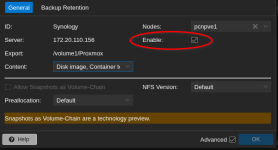
I thought once the drive shares are unmounted they are removed from the list at Datacenter > Storage. You are saying they will still be there and only disabled. Got it. Thanks. I will install DerDanilo/proxmox-stuff and try to backup PVE beforehand just in case things go sideways. I'll let you know how it goes.
JUST FOR THE BENEFIT OF ANYONE READING THIS THREAD THIS IS THE PROCEDURE I'M USING:
1. STOP every container and VM individually from its UI desktop using Shutdown > STOP .
2. Unmount drive shares:
AND
2. Check
a. if necessary and if
then recheck
3. In the shell use gdu / and navigate to /mnt/pve/ and then to anything that is listed there to see what files exist.
4. Deleting files.
4a. You cannot delete files from within
4b. To delete the file named myfile, type the following:
rm myfile
4c. To delete all the files in the mydir directory, one by one, type the following:
rm -i mydir/*
(Note: After each file name displays, type y and press Enter to delete the file. Or to keep the file, just press Enter.)
4d. Exit the shell.
5. Navigate to Datacenter > Storage and highlight the unmounted share and click Edit.
In the pop up check the Enable box then click OK. Do this for every unmounted drive listed.
5. You’re done!
I thought once the drive shares are unmounted they are removed from the list at Datacenter > Storage. You are saying they will still be there and only disabled. Got it. Thanks. I will install DerDanilo/proxmox-stuff and try to backup PVE beforehand just in case things go sideways. I'll let you know how it goes.
JUST FOR THE BENEFIT OF ANYONE READING THIS THREAD THIS IS THE PROCEDURE I'M USING:
1. STOP every container and VM individually from its UI desktop using Shutdown > STOP .
2. Unmount drive shares:
unmount /mnt/pve/ISO_StorageAND
unmount /mnt/pve/Synology2. Check
df- hT to make sure that Synology and ISO_Storage mounts no longer appear.a. if necessary and if
df- hT still shows that Synology is still mounted then unmount the other Synology related shares listed at /mnt/pve/ using:unmount /mnt/pve/SynologyDS923unmount /mnt/pve/Moviesthen recheck
df -hT. Hopefully that takes care of the issue.3. In the shell use gdu / and navigate to /mnt/pve/ and then to anything that is listed there to see what files exist.
4. Deleting files.
4a. You cannot delete files from within
gdu so you need to quit q first and then from the shell navigate to the directories containing the target files and then delete the files.4b. To delete the file named myfile, type the following:
rm myfile
4c. To delete all the files in the mydir directory, one by one, type the following:
rm -i mydir/*
(Note: After each file name displays, type y and press Enter to delete the file. Or to keep the file, just press Enter.)
4d. Exit the shell.
5. Navigate to Datacenter > Storage and highlight the unmounted share and click Edit.
In the pop up check the Enable box then click OK. Do this for every unmounted drive listed.
5. You’re done!
OK, the drives were unmounted. I had to first untick the "Enable" box in Datacenter > Storage > Edit and then run the command
ISO_Storage and Synology are now gone.
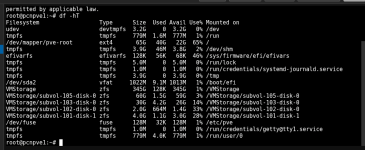
Using
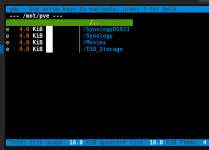
If I look at either
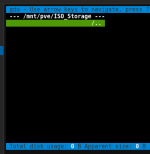
I see no data extra data from Local in
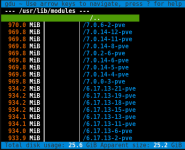
Other than that I see no directories in local that are large.
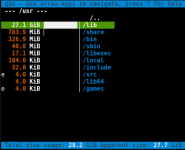
I don't know what to do next. If I want to remount you say that All I need to do is re Enable each share. I will try that now.
umount /mnt/pve/<[I]share_name[/I]> to unmount the shares.ISO_Storage and Synology are now gone.
Using
gdu / and going to /mnt/pve I see the following. I notices that all of these shares now have an "e" before the size. If I look at either
Synology or ISO_Storage I see that they are both empty. For example here is ISO_Storage:I see no data extra data from Local in
/mnt . I still have over 40Gb of data in the local drive. I know there is about 25.6Gb in and are uploaded PVE kernels.Other than that I see no directories in local that are large.
I don't know what to do next. If I want to remount you say that All I need to do is re Enable each share. I will try that now.
Well if
Have you tried the autopurge commands already? Gdu can also delete via the
/mnt is empty (can't see that here) that means what I suspected wasn't the case. I'd still make the mount points immutable while nothing is mounted there.Have you tried the autopurge commands already? Gdu can also delete via the
d key. You shouldn't manually delete the kernels though.
Last edited:
I have not tried autopurge yet. I re-enabled both unmounted shares and only the
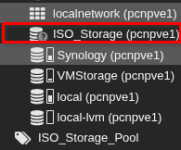
Just for laughs I tried

It seems if there is a flag for the share drive in /etc/stab I will be able to use the
So I tried to create it in fstab using the below command but it said that it was already defined.

So how do I remount ISO_Storage?? I will work on the kernels after I restore ISO_Storage.
Synology NFS share remounted on it's own. The ISO_Storage ext4 share is still unmounted. Note the "?" on the icon.Just for laughs I tried
mount /mnt/pve/ISO_Storage:It seems if there is a flag for the share drive in /etc/stab I will be able to use the
mount command to re-mount it. The command from my research I posted late yesterday is:pvesm add dir ISO_Storage --path /etc/fstab/ISO_StorageSo I tried to create it in fstab using the below command but it said that it was already defined.
So how do I remount ISO_Storage?? I will work on the kernels after I restore ISO_Storage.
That makes no sense. Please don't run random commands. Check/etc/fstab/ISO_Storage
node > System > Syslog Log for problems. PVE uses mount units. If you want it simple just reboot. Otherwise check systemctl list-units --type=mount for the unit.
Last edited:

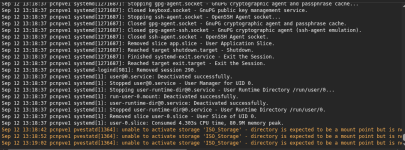
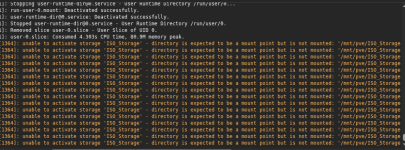
or try to list the mount units and try to start it viasystemctl start pve-mnt-TABKEY.
I get reboot but exactly how do I list the mount units? Then what do I do with it?
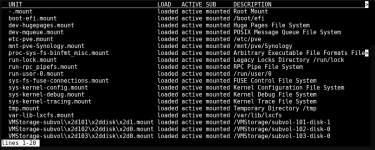


I did an
apt autoremove --purge and the used volume on local went from 61% to 24% !!! What that 24% is I have no idea but it's better than 61%. I just want to say thank you for your help. I learned a lot about examining my share drives. I still want to know what is using 17Gb of space and why I can't see any of it using gdu /. Thanks again!!!