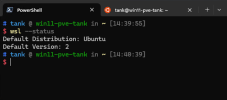
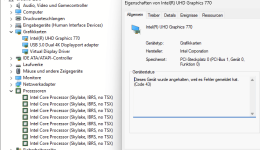
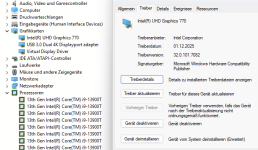
cannot get WSL2 to work in Windows 11, that is virtualized inside of proxmox 8

Can you run the command: wsl —-status in order to verify from that screenshot it could be WSL 1.0.
I can get WSL 1 running but not WSL 2.
 
Have you tried passing through integrated Intel Graphics? This above works in getting the VM to boot to the Windows Desktop but you get the Error 43 message for the Intel Iris XE graphics and the OS doesn't list the GPU in Task Manager.
i can confirm this breaks GPU passthrough :-(
 
win11
args: -cpu host,hv_passthrough,level=30,-waitpkg

work fine, 4090 passthrough also work
OMG this worked!!! AMAZING

If you are having this problem and you're anything like me, you might not even know what he means by this but its super simple so Ill give you some context.

In your host edit the config for your windows VM

nano /etc/pve/qemu-server/<vm-id>.conf
add the line that he posted to the bottom of the file (obviously if you already have an args line, you may need to edit it instead:

args: -cpu host,hv_passthrough,level=30,-waitpkg

Start VM up and viola!
 
Last edited:
I can confirm that on i9-13900K this works:

Code:
args: -cpu Cooperlake,hv_relaxed,hv_spinlocks=0x1fff,hv_vapic,hv_time,+vmx

while this doesn't work:
Code:
args: -cpu host,hv_passthrough,level=30,-waitpkg

I didn't try GPU passthrough and it's disabled in my setup,
 
  • Like
Reactions: bnhf
the PVE default emulated CPUs do not enable all necessary CPU features for the guest to run nested virtualization,
one has to fall back to HOST-CPU
 
WSL2 inside Windows 11 VM on Proxmox 8.x (Intel 12–14th gen) — working recipe for me

Tested on: Proxmox VE 8.4.9, kernel 6.8.12, host CPU i9-13900H.
Problem: Windows 11 guest installs fine, but enabling WSL2/Hyper-V causes HCS_E_SERVICE_NOT_AVAILABLE, boot loops, or 0xC0000001.
Root cause: CPUID quirk on recent Intel gens under KVM. Fix: present a Skylake-like CPUID and disable WAITPKG, or use a compatible CPU model.

Prereqs (host)
Code:
# nested must be enabled on the host

cat /sys/module/kvm\_intel/parameters/nested   # Y
egrep '(vmx)' /proc/cpuinfo | head            # should show vmx/ept
BIOS: enable VT-x/VT-d. Do \not\ hide KVM from the guest.

Create the VM (example)
Adjust storage/ISO names to yours.
Code:
VMID=120
NAME=win11-wsl2
MEM=16384
CORES=8
DISK_GB=200

qm create $VMID --name $NAME --ostype win11 --machine pc-q35-9.2+pve1&#x20;
--cpu host --sockets 1 --cores $CORES --memory $MEM --agent enabled=1&#x20;
--scsihw virtio-scsi-single --vga qxl --bios ovmf
qm set $VMID --efidisk0 local-lvm:4,efitype=4m,pre-enrolled-keys=1
qm set $VMID --tpmstate0 local-lvm:4,version=v2.0
qm set $VMID --scsi0 Storage2:${DISK_GB},ssd=1,discard=on,iothread=1
qm set $VMID --net0 virtio,bridge=vmbr0,firewall=1
qm set $VMID --ide2 NFS:iso/Win11_24H2_English_x64.iso,media=cdrom
qm set $VMID --ide3 NFS:iso/virtio-win-0.1.271.iso,media=cdrom


Intel 12–14th gen fix (preferred)
Code:
# Present a Skylake-like CPUID and disable WAITPKG

qm set $VMID -args '-cpu host,hv_passthrough,level=30,-waitpkg'
qm start $VMID
Install Windows. On disk screen, load VirtIO drivers (viostor, NetKVM) from the virtio-win ISO. After first boot, install the VirtIO Guest Agent.

Enable WSL2 inside the guest

  • Windows Security → Device Security → Core isolation → \Memory integrity = Off\ (reboot if asked).
  • PowerShell (Administrator):
Code:
dism /online /enable-feature /featurename:VirtualMachinePlatform /all /norestart
dism /online /enable-feature /featurename:Microsoft-Windows-Subsystem-Linux /all /norestart
bcdedit /set hypervisorlaunchtype Auto
Restart-Computer

systeminfo | findstr /i "VM Monitor Mode Extensions|Second Level Address Translation"  # Yes/Yes
wsl --set-default-version 2
wsl --install -d Ubuntu
 
  • Like
Reactions: scyto
do you mean in the preferred fix OR disabling memory integrity, i am a little confused by the write up

also if one has to disable memory integrity that means this fix cant be used in other scenarios where this is required (like the boot loop caaused by enabling full hyper-v, MSAs, WhFB etc right?
 
do you mean in the preferred fix OR disabling memory integrity, i am a little confused by the write up

also if one has to disable memory integrity that means this fix cant be used in other scenarios where this is required (like the boot loop caaused by enabling full hyper-v, MSAs, WhFB etc right?


Short answer: the “preferred fix” is the CPU arg line. Disabling “Memory integrity” (HVCI) is separate and only needed if your VM boot-loops when Hyper-V tries to start. WSL2 itself does not require HVCI or the full Hyper-V role.


Details:

  • The fix I used is:
    qm set -args '-cpu host,hv_passthrough,level=30,-waitpkg'
    This makes the guest see a Skylake-like CPUID and removes WAITPKG. That’s what resolves HCS_E_SERVICE_NOT_AVAILABLE / 0xC0000001 for me on 13th-gen Intel under KVM.
  • “Memory integrity = Off” is just a mitigation for VMs that go into Automatic Repair or blue-screen as soon as the hypervisor launches. If your VM boots fine with the CPU arg, you can leave HVCI alone.
  • If your use case requires VBS/HVCI (full Hyper-V, MSAs, Windows Hello for Business/Credential Guard): that’s outside the goal of this WSL2 recipe. You can try adding a virtual IOMMU and keep TPM/Secure Boot, but on 12–14th gen Intel nested under KVM this is hit-or-miss. If you must have HVCI, bare-metal Windows with Hyper-V is the reliable path.

So: use the CPU arg fix for WSL2. Only turn off Memory integrity if the VM won’t boot after enabling the WSL2/Hyper-V components.
 
  • Like
Reactions: scyto