

GMKTEC K12 | Ryzen 7 H 255 | Problem with IGPU

Glupikocz

Member
May 9, 2022
28
1
8
Hi,
I'm struggling with transferring a graphics card (IGPU) to a Windows VM.

The situation is that the machine works fine, it detects the graphics card, but at random moments the whole host crashes, as if something was wrong with IOMMU.

I figured this out because I also have a GMKTEC M5 PRO on which everything works.
I copied the settings 1:1, everything worked fine the first time, I made my vbios, I'm playing a game and suddenly boom, green screen, I say oh, what's that. At first I say I'll ignore it, but then bam, the same thing happens again.

I completely removed the Windows VM and I see that everything works, so there is definitely something wrong with this VM.

But first, enable everything you can in the BIOS.

Then:
root@node2:~# dmesg | grep -e DMAR -e IOMMU
[ 0.634321] pci 0000:00:00.2: AMD-Vi: IOMMU performance counters supported
[ 0.636820] perf/amd_iommu: Detected AMD IOMMU #0 (2 banks, 4 counters/bank).

root@node2:~# dmesg | grep 'remapping'
[ 0.107932] x2apic: IRQ remapping doesn't support X2APIC mode
[ 0.635689] AMD-Vi: Interrupt remapping enabled

root@node2:~# cat /etc/modprobe.d/iommu_unsafe_interrupts.conf
options vfio_iommu_type1 allow_unsafe_interrupts=1


Here is the blacklist
root@node2:~# cat /etc/modprobe.d/blacklist.conf
blacklist amdgpu
blacklist radeon
blacklist nouveau
blacklist nvidia
blacklist i915

Here is a screenshot of the VM configuration.
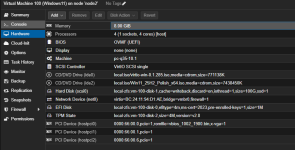
1764979818694.png


I also tested other versions of the AMD driver, but unfortunately nothing helps.
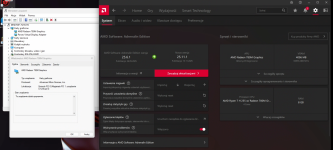
1764979891629.png

Does anyone have any problems with what I'm doing wrong?
Maybe there's no ROM for the sound card? But I have no idea how to do it, the guides from ISC30 github or others are too difficult for me, I would need something st
 
I'll leave that too.
And this is what the IOMMU groups look like for me
root@node2:~# pvesh get /nodes/node2/hardware/pci --pci-class-blacklist ""
┌──────────┬────────┬──────────────┬────────────┬────────┬───────────────────────────────────────────────────────────┬──────┬──────────────────┬──────────────│ class │ device │ id │ iommugroup │ vendor │ device_name │ mdev │ subsystem_device │ subsystem_dev╞══════════╪════════╪══════════════╪════════════╪════════╪═══════════════════════════════════════════════════════════╪══════╪══════════════════╪══════════════│ 0x010802 │ 0xa804 │ 0000:01:00.0 │ 15 │ 0x144d │ NVMe SSD Controller SM961/PM961/SM963 │ │ 0xa801 │ SM963 2.5" NV├──────────┼────────┼──────────────┼────────────┼────────┼───────────────────────────────────────────────────────────┼──────┼──────────────────┼──────────────│ 0x010802 │ 0xa804 │ 0000:05:00.0 │ 19 │ 0x144d │ NVMe SSD Controller SM961/PM961/SM963 │ │ 0xa801 │ SM963 2.5" NV├──────────┼────────┼──────────────┼────────────┼────────┼───────────────────────────────────────────────────────────┼──────┼──────────────────┼──────────────│ 0x020000 │ 0x8125 │ 0000:02:00.0 │ 16 │ 0x10ec │ RTL8125 2.5GbE Controller │ │ 0x8125 │
├──────────┼────────┼──────────────┼────────────┼────────┼───────────────────────────────────────────────────────────┼──────┼──────────────────┼──────────────│ 0x020000 │ 0x8125 │ 0000:04:00.0 │ 18 │ 0x10ec │ RTL8125 2.5GbE Controller │ │ 0x8125 │
├──────────┼────────┼──────────────┼────────────┼────────┼───────────────────────────────────────────────────────────┼──────┼──────────────────┼──────────────│ 0x028000 │ 0x0616 │ 0000:03:00.0 │ 17 │ 0x14c3 │ MT7922 802.11ax PCI Express Wireless Network Adapter │ │ 0x0616 │
├──────────┼────────┼──────────────┼────────────┼────────┼───────────────────────────────────────────────────────────┼──────┼──────────────────┼──────────────│ 0x030000 │ 0x1900 │ 0000:66:00.0 │ 20 │ 0x1002 │ Phoenix3 │ │ 0x1900 │
├──────────┼────────┼──────────────┼────────────┼────────┼───────────────────────────────────────────────────────────┼──────┼──────────────────┼──────────────│ 0x040300 │ 0x1640 │ 0000:66:00.1 │ 21 │ 0x1002 │ Radeon High Definition Audio Controller [Rembrandt/Strix] │ │ 0x1640 │
├──────────┼────────┼──────────────┼────────────┼────────┼───────────────────────────────────────────────────────────┼──────┼──────────────────┼──────────────│ 0x040300 │ 0x15e3 │ 0000:66:00.6 │ 25 │ 0x1022 │ Family 17h/19h/1ah HD Audio Controller │ │ 0xd997 │
├──────────┼────────┼──────────────┼────────────┼────────┼───────────────────────────────────────────────────────────┼──────┼──────────────────┼──────────────│ 0x060000 │ 0x14e8 │ 0000:00:00.0 │ -1 │ 0x1022 │ Phoenix Root Complex │ │ 0x14e8 │
├──────────┼────────┼──────────────┼────────────┼────────┼───────────────────────────────────────────────────────────┼──────┼──────────────────┼──────────────│ 0x060000 │ 0x14ea │ 0000:00:01.0 │ 0 │ 0x1022 │ Phoenix Dummy Host Bridge │ │ 0x0000 │
├──────────┼────────┼──────────────┼────────────┼────────┼───────────────────────────────────────────────────────────┼──────┼──────────────────┼──────────────│ 0x060000 │ 0x14ea │ 0000:00:02.0 │ 2 │ 0x1022 │ Phoenix Dummy Host Bridge │ │ 0x0000 │
├──────────┼────────┼──────────────┼────────────┼────────┼───────────────────────────────────────────────────────────┼──────┼──────────────────┼──────────────│ 0x060000 │ 0x14ea │ 0000:00:03.0 │ 7 │ 0x1022 │ Phoenix Dummy Host Bridge │ │ 0x0000 │
├──────────┼────────┼──────────────┼────────────┼────────┼───────────────────────────────────────────────────────────┼──────┼──────────────────┼──────────────│ 0x060000 │ 0x14ea │ 0000:00:04.0 │ 8 │ 0x1022 │ Phoenix Dummy Host Bridge │ │ 0x0000 │
├──────────┼────────┼──────────────┼────────────┼────────┼───────────────────────────────────────────────────────────┼──────┼──────────────────┼──────────────│ 0x060000 │ 0x14ea │ 0000:00:08.0 │ 9 │ 0x1022 │ Phoenix Dummy Host Bridge │ │ 0x0000 │
├──────────┼────────┼──────────────┼────────────┼────────┼───────────────────────────────────────────────────────────┼──────┼──────────────────┼──────────────│ 0x060000 │ 0x14f0 │ 0000:00:18.0 │ 14 │ 0x1022 │ Phoenix Data Fabric; Function 0 │ │ 0x0000 │
├──────────┼────────┼──────────────┼────────────┼────────┼───────────────────────────────────────────────────────────┼──────┼──────────────────┼──────────────│ 0x060000 │ 0x14f1 │ 0000:00:18.1 │ 14 │ 0x1022 │ Phoenix Data Fabric; Function 1 │ │ 0x0000 │
├──────────┼────────┼──────────────┼────────────┼────────┼───────────────────────────────────────────────────────────┼──────┼──────────────────┼──────────────│ 0x060000 │ 0x14f2 │ 0000:00:18.2 │ 14 │ 0x1022 │ Phoenix Data Fabric; Function 2 │ │ 0x0000 │
├──────────┼────────┼──────────────┼────────────┼────────┼───────────────────────────────────────────────────────────┼──────┼──────────────────┼──────────────│ 0x060000 │ 0x14f3 │ 0000:00:18.3 │ 14 │ 0x1022 │ Phoenix Data Fabric; Function 3 │ │ 0x0000 │
├──────────┼────────┼──────────────┼────────────┼────────┼───────────────────────────────────────────────────────────┼──────┼──────────────────┼──────────────│ 0x060000 │ 0x14f4 │ 0000:00:18.4 │ 14 │ 0x1022 │ Phoenix Data Fabric; Function 4 │ │ 0x0000 │
├──────────┼────────┼──────────────┼────────────┼────────┼───────────────────────────────────────────────────────────┼──────┼──────────────────┼──────────────│ 0x060000 │ 0x14f5 │ 0000:00:18.5 │ 14 │ 0x1022 │ Phoenix Data Fabric; Function 5 │ │ 0x0000 │
├──────────┼────────┼──────────────┼────────────┼────────┼───────────────────────────────────────────────────────────┼──────┼──────────────────┼──────────────│ 0x060000 │ 0x14f6 │ 0000:00:18.6 │ 14 │ 0x1022 │ Phoenix Data Fabric; Function 6 │ │ 0x0000 │
├──────────┼────────┼──────────────┼────────────┼────────┼───────────────────────────────────────────────────────────┼──────┼──────────────────┼──────────────│ 0x060000 │ 0x14f7 │ 0000:00:18.7 │ 14 │ 0x1022 │ Phoenix Data Fabric; Function 7 │ │ 0x0000 │
├──────────┼────────┼──────────────┼────────────┼────────┼───────────────────────────────────────────────────────────┼──────┼──────────────────┼──────────────│ 0x060100 │ 0x790e │ 0000:00:14.3 │ 13 │ 0x1022 │ FCH LPC Bridge │ │ 0x790e │
├──────────┼────────┼──────────────┼────────────┼────────┼───────────────────────────────────────────────────────────┼──────┼──────────────────┼──────────────│ 0x060400 │ 0x14ed │ 0000:00:01.2 │ 1 │ 0x1022 │ Phoenix GPP Bridge │ │ 0x1453 │
├──────────┼────────┼──────────────┼────────────┼────────┼───────────────────────────────────────────────────────────┼──────┼──────────────────┼──────────────│ 0x060400 │ 0x14ee │ 0000:00:02.1 │ 3 │ 0x1022 │ Phoenix GPP Bridge │ │ 0x1453 │
├──────────┼────────┼──────────────┼────────────┼────────┼───────────────────────────────────────────────────────────┼──────┼──────────────────┼──────────────│ 0x060400 │ 0x14ee │ 0000:00:02.2 │ 4 │ 0x1022 │ Phoenix GPP Bridge │ │ 0x1453 │
├──────────┼────────┼──────────────┼────────────┼────────┼───────────────────────────────────────────────────────────┼──────┼──────────────────┼──────────────│ 0x060400 │ 0x14ee │ 0000:00:02.3 │ 5 │ 0x1022 │ Phoenix GPP Bridge │ │ 0x1453 │
├──────────┼────────┼──────────────┼────────────┼────────┼───────────────────────────────────────────────────────────┼──────┼──────────────────┼──────────────│ 0x060400 │ 0x14ee │ 0000:00:02.5 │ 6 │ 0x1022 │ Phoenix GPP Bridge │ │ 0x1453 │
├──────────┼────────┼──────────────┼────────────┼────────┼───────────────────────────────────────────────────────────┼──────┼──────────────────┼──────────────│ 0x060400 │ 0x14ef │ 0000:00:04.1 │ 8 │ 0x1022 │ Family 19h USB4/Thunderbolt PCIe tunnel │ │ 0x1453 │
├──────────┼────────┼──────────────┼────────────┼────────┼───────────────────────────────────────────────────────────┼──────┼──────────────────┼──────────────│ 0x060400 │ 0x14eb │ 0000:00:08.1 │ 10 │ 0x1022 │ Phoenix Internal GPP Bridge to Bus [C:A] │ │ 0x14eb │
├──────────┼────────┼──────────────┼────────────┼────────┼───────────────────────────────────────────────────────────┼──────┼──────────────────┼──────────────│ 0x060400 │ 0x14eb │ 0000:00:08.2 │ 11 │ 0x1022 │ Phoenix Internal GPP Bridge to Bus [C:A] │ │ 0x14eb │
├──────────┼────────┼──────────────┼────────────┼────────┼───────────────────────────────────────────────────────────┼──────┼──────────────────┼──────────────│ 0x060400 │ 0x14eb │ 0000:00:08.3 │ 12 │ 0x1022 │ Phoenix Internal GPP Bridge to Bus [C:A] │ │ 0x14eb │
├──────────┼────────┼──────────────┼────────────┼────────┼───────────────────────────────────────────────────────────┼──────┼──────────────────┼──────────────│ 0x080600 │ 0x14e9 │ 0000:00:00.2 │ -1 │ 0x1022 │ Phoenix IOMMU │ │ 0x14e9 │
├──────────┼────────┼──────────────┼────────────┼────────┼───────────────────────────────────────────────────────────┼──────┼──────────────────┼──────────────│ 0x0c0330 │ 0x15b9 │ 0000:66:00.3 │ 23 │ 0x1022 │ │ │ 0x15b9 │
├──────────┼────────┼──────────────┼────────────┼────────┼───────────────────────────────────────────────────────────┼──────┼──────────────────┼──────────────│ 0x0c0330 │ 0x15ba │ 0000:66:00.4 │ 24 │ 0x1022 │ │ │ 0x15b9 │
├──────────┼────────┼──────────────┼────────────┼────────┼───────────────────────────────────────────────────────────┼──────┼──────────────────┼──────────────│ 0x0c0330 │ 0x15c0 │ 0000:68:00.3 │ 28 │ 0x1022 │ │ │ 0x15c0 │
├──────────┼────────┼──────────────┼────────────┼────────┼───────────────────────────────────────────────────────────┼──────┼──────────────────┼──────────────│ 0x0c0330 │ 0x15c1 │ 0000:68:00.4 │ 29 │ 0x1022 │ │ │ 0x15c1 │
├──────────┼────────┼──────────────┼────────────┼────────┼───────────────────────────────────────────────────────────┼──────┼──────────────────┼──────────────│ 0x0c0340 │ 0x1669 │ 0000:68:00.6 │ 30 │ 0x1022 │ Pink Sardine USB4/Thunderbolt NHI controller #2 │ │ 0x1669 │
├──────────┼────────┼──────────────┼────────────┼────────┼───────────────────────────────────────────────────────────┼──────┼──────────────────┼──────────────│ 0x0c0500 │ 0x790b │ 0000:00:14.0 │ 13 │ 0x1022 │ FCH SMBus Controller │ │ 0x790b │
├──────────┼────────┼──────────────┼────────────┼────────┼───────────────────────────────────────────────────────────┼──────┼──────────────────┼──────────────│ 0x108000 │ 0x15c7 │ 0000:66:00.2 │ 22 │ 0x1022 │ Phoenix CCP/PSP 3.0 Device │ │ 0x15c7 │
├──────────┼────────┼──────────────┼────────────┼────────┼───────────────────────────────────────────────────────────┼──────┼──────────────────┼──────────────│ 0x130000 │ 0x14ec │ 0000:67:00.0 │ 26 │ 0x1022 │ Phoenix Dummy Function │ │ 0x14ec │
├──────────┼────────┼──────────────┼────────────┼────────┼───────────────────────────────────────────────────────────┼──────┼──────────────────┼──────────────│ 0x130000 │ 0x14ec │ 0000:68:00.0 │ 27 │ 0x1022 │ Phoenix Dummy Function │ │ 0x14ec │
└──────────┴────────┴──────────────┴────────────┴────────┴───────────────────────────────────────────────────────────┴──────┴──────────────────┴──────────────
 
I don’t think the problem is specific to Proxmox or even to the Windows virtual machine, because I’m running the same device directly with Windows 11 as operating system (for my home office) and have a similar, possibly the same problem: a crash without any clues in System logs — green screen over HDMI (but not a Windows green screen), black screen on the secondary USB-C display, fan keeps runing.

I’m a bit puzzled. The device is from Ali — sold as a barebone. I suspected the issue might be with the RAM or the iGPU. My 32 GB DDR5 memory comes from another system where it worked perfectly. Memory checks (including memtest_vulcan) run without any issues. Various AMD graphics driver versions — including those from the manufacturer’s (GMKTEC) driver package and the ones from Windows Update — make no difference.
 
I have exactly the same GMKTEC K12 from AliExpress, and I’m experiencing the same issue. I’ve tried around 20 different DDR5 RAM sticks — 4800 MHz and 5600 MHz, in 16 GB, 32 GB, and 64 GB configurations, both single and dual channel — and the problem still persists. I’ve also tested the GPU, and my electrician friend checked the entire hardware setup — everything seems perfectly fine.

What’s even more interesting is that the issue doesn’t happen on Ubuntu, which detects and uses the same integrated GPU without problems. A clean Windows installation shows exactly the same behavior.

I also discovered something else: the Windows VM doesn’t crash as long as I keep Parsec running. For example, I had my system up for two days straight on Proxmox 9.1.2, and everything worked fine until I closed Parsec — then the crash happened almost immediately. Another trigger I noticed is backups. When my automatic backup starts around 3 a.m., it reaches about 1% and the crash occurs if the Windows VM is running.

It really feels like there’s some issue related to IOMMU or VFIO reset — like the GPU doesn’t properly reinitialize or return the display back to the host after certain operations. I’m not 100% sure, but that’s what it looks like.
 
I am trying everything, getting stuck on code 43 radeon 780 drivers exclamation mark in device manager, K12 with 32gb sk hynix 5600 ram.

everything seems stable otherwise, also linux gpu passthu seemed to work,

So far, i dumped vbios,
GNU nano 8.4 /etc/pve/qemu-server/110.conf
agent: 1
args: -cpu 'host,-hypervisor,kvm=off'
bios: ovmf
boot: order=ide0;scsi0
cores: 8
cpu: host,hidden=1
efidisk0: local-lvm:vm-110-disk-0,efitype=4m,ms-cert=2023,pre-enrolled-keys=1,size=4M
hostpci0: 0000:65:00,pcie=1,rombar=0,romfile=vbios_780M.bin,x-vga=1
hostpci1: 0000:65:00.1,pcie=1,romfile=AMDGopDriver.rom
ide0: local:iso/virtio-win.iso,media=cdrom,size=771138K
machine: pc-q35-10.1
memory: 16384
meta: creation-qemu=10.1.2,ctime=1764892001
name: win11-gpu
net0: virtio=xxxxxbridge=vmbr0
ostype: win11
scsi0: local-lvm:vm-110-disk-1,discard=on,size=75G,ssd=1
scsihw: virtio-scsi-single
smbios1: uuid=xxxxx
tpmstate0: local-lvm:vm-110-disk-2,size=4M,version=v2.0
vga: none
vmgenid: xxxx
 
I am trying everything, getting stuck on code 43 radeon 780 drivers exclamation mark in device manager, K12 with 32gb sk hynix 5600 ram.

everything seems stable otherwise, also linux gpu passthu seemed to work,

So far, i dumped vbios,
GNU nano 8.4 /etc/pve/qemu-server/110.conf
agent: 1
args: -cpu 'host,-hypervisor,kvm=off'
bios: ovmf
boot: order=ide0;scsi0
cores: 8
cpu: host,hidden=1
efidisk0: local-lvm:vm-110-disk-0,efitype=4m,ms-cert=2023,pre-enrolled-keys=1,size=4M
hostpci0: 0000:65:00,pcie=1,rombar=0,romfile=vbios_780M.bin,x-vga=1
hostpci1: 0000:65:00.1,pcie=1,romfile=AMDGopDriver.rom
ide0: local:iso/virtio-win.iso,media=cdrom,size=771138K
machine: pc-q35-10.1
memory: 16384
meta: creation-qemu=10.1.2,ctime=1764892001
name: win11-gpu
net0: virtio=xxxxxbridge=vmbr0
ostype: win11
scsi0: local-lvm:vm-110-disk-1,discard=on,size=75G,ssd=1
scsihw: virtio-scsi-single
smbios1: uuid=xxxxx
tpmstate0: local-lvm:vm-110-disk-2,size=4M,version=v2.0
vga: none
vmgenid: xxxx

You would have to show the entire configuration, what exactly you changed and what you added.
Generally, Windows itself will work without any problems, the only issue is with restarting.
The question is also why you are using AMDGopDriver.rom instead of AMDGopDriver_8845hs.rom, and it would be best if you created your own ROM.


Show me the ID of your graphics card because I think you have a mistake here:
hostpci0: 0000:65:00,pcie=1,rombar=0,romfile=vbios_780M.bin,x-vga=1
hostpci1: 0000:65:00.1,pcie=1,romfile=AMDGopDriver.rom

Use it and send it to me:
lspci -nn | grep -e 'AMD/ATI'

You can write to me on Discord:
- Glupikocz

1765834314962.png
We'll work together via AnyDesk.

I should add that my English is poor because I'm from Poland.
 
Last edited:
Ok, So the exclamation mark is gone.
I followed this reddit post ,

https://www.reddit.com/r/MiniPCs/comments/1pl8h29/gmktec_k12_780m_igpu_and_proxmox_9_passthru/

here is my conf

agent: 1
args: -cpu 'host,-hypervisor,kvm=off'
bios: ovmf
boot: order=ide0;scsi0
cores: 8
cpu: host
efidisk0: local-lvm:vm-110-disk-0,efitype=4m,ms-cert=2023,pre-enrolled-keys=1,size=4M
hostpci0: 0000:65:00.0,pcie=1,romfile=vbios_7xxx.bin
hostpci1: 0000:65:00.1,pcie=1,romfile=AMDGopDriver_7840hs.rom
ide0: local:iso/virtio-win.iso,media=cdrom,size=771138K
machine: pc-q35-10.1
memory: 16384
meta: creation-qemu=10.1.2,ctime=1764892001
name: win11-gpu
net0: virtio=*******,bridge=vmbr0
ostype: win11
scsi0: local-lvm:vm-110-disk-1,discard=on,size=75G,ssd=1
scsihw: virtio-scsi-single
smbios1: uuid=***********
tpmstate0: local-lvm:vm-110-disk-2,size=4M,version=v2.0
vga: none
vmgenid: *******************
 
Ok, So the exclamation mark is gone.
I followed this reddit post ,

https://www.reddit.com/r/MiniPCs/comments/1pl8h29/gmktec_k12_780m_igpu_and_proxmox_9_passthru/

here is my conf

agent: 1
args: -cpu 'host,-hypervisor,kvm=off'
bios: ovmf
boot: order=ide0;scsi0
cores: 8
cpu: host
efidisk0: local-lvm:vm-110-disk-0,efitype=4m,ms-cert=2023,pre-enrolled-keys=1,size=4M
hostpci0: 0000:65:00.0,pcie=1,romfile=vbios_7xxx.bin
hostpci1: 0000:65:00.1,pcie=1,romfile=AMDGopDriver_7840hs.rom
ide0: local:iso/virtio-win.iso,media=cdrom,size=771138K
machine: pc-q35-10.1
memory: 16384
meta: creation-qemu=10.1.2,ctime=1764892001
name: win11-gpu
net0: virtio=*******,bridge=vmbr0
ostype: win11
scsi0: local-lvm:vm-110-disk-1,discard=on,size=75G,ssd=1
scsihw: virtio-scsi-single
smbios1: uuid=***********
tpmstate0: local-lvm:vm-110-disk-2,size=4M,version=v2.0
vga: none
vmgenid: *******************
Does your VM experience a performance decrease when using args: -cpu 'host,-hypervisor,kvm=off' compared to when they are not used?
 
the guy who helped you in that reddit post is actually me.
i only got it to work with these args.
i tried other things, but after getting nowhere for a few days i settled on this.
i still dont have any hdmi/dp output, but i dont care about that.
i need gpu acceleration inside the vm for android emulators or other software that wants to use a real GPU.

for that it works. quite well actually.
if i lose a few percent of performance because of it i can live with that for my scenario.
 
here is my geekbench 6 cpu results

https://browser.geekbench.com/v6/cpu/compare/15610159?baseline=15609827

Seems their is a difference, but then the gpu resets or disables and reenables in device manager
Try this to see if the performance comes back: args: -cpu 'host,-hypervisor,kvm=off,+invtsc'

Also try this if you have WSL2, Hyper-V, or VBS enabled in your Windows VM:
Code:
args: -cpu 'host,+hv-emsr-bitmap,+hv-frequencies,+hv-reenlightenment,+hv-tlbflush-direct,hv_ipi,hv_relaxed,hv_reset,hv_runtime,hv_spinlocks=0x1fff,hv_stimer,hv_synic,hv_time,hv_vapic,hv_vendor_id=intel,hv_vpindex,-hypervisor,+invtsc,kvm=off,+kvm_pv_eoi,+kvm_pv_unhalt,host-phys-bits=true'
 
Last edited:
Try this to see if the performance comes back: args: -cpu 'host,-hypervisor,kvm=off,+invtsc'

Also try this if you have WSL2, Hyper-V, or VBS enabled in your Windows VM:
Code:
args: -cpu 'host,+hv-emsr-bitmap,+hv-frequencies,+hv-reenlightenment,+hv-tlbflush-direct,hv_ipi,hv_relaxed,hv_reset,hv_runtime,hv_spinlocks=0x1fff,hv_stimer,hv_synic,hv_time,hv_vapic,hv_vendor_id=intel,hv_vpindex,-hypervisor,+invtsc,kvm=off,+kvm_pv_eoi,+kvm_pv_unhalt,host-phys-bits=true'
I will give this a go and provide some feedback thanks
 
It behaves like my Windows VM: hiding the VM with -hypervisor,kvm=off causes performance drop, but the performance comes back if +invtsc is added.

However, using +invtsc alone will block live migration and snapshot with RAM. Need to add another flag, tsc-frequency=2000000000
to allow live migration and snapshot with RAM.
 
btw i got the display to work somewhat. when the vm boots i see the boot process up until the windows login on the display and then it craps out and shows garbage on the screen.

to get that far i needed to extract the specific rom file for the H255 using the tools here: https://github.com/isc30/ryzen-gpu-passthrough-proxmox/tree/main/Tools in combination with the bios file i downloaded from https://drive.google.com/drive/fold...TqgAMwJ3Xp?spm=..page_2054333.page_detail_1.1 (this is their bios repository for all machines and they have the 1.07 bios which my device came loaded with).

basically you copy the bios into the correct folder and rename it to bios.bin, start the batch file and follow the instruction give in the github.
it gives you the vbios and an efi file.

the efi file you convert to a rom with the instructions given on the github.

the rom you can then upload to your node and use it as the rom for the .1 pcie device

now it all looks awesome until the loginscreen. i need to find out what garbles the output once i arrives there.

the vm stays completely functional otherwise, just doesnt see the hdmi display after bootup.
 
btw i got the display to work somewhat. when the vm boots i see the boot process up until the windows login on the display and then it craps out and shows garbage on the screen.

to get that far i needed to extract the specific rom file for the H255 using the tools here: https://github.com/isc30/ryzen-gpu-passthrough-proxmox/tree/main/Tools in combination with the bios file i downloaded from https://drive.google.com/drive/fold...TqgAMwJ3Xp?spm=..page_2054333.page_detail_1.1 (this is their bios repository for all machines and they have the 1.07 bios which my device came loaded with).

basically you copy the bios into the correct folder and rename it to bios.bin, start the batch file and follow the instruction give in the github.
it gives you the vbios and an efi file.

the efi file you convert to a rom with the instructions given on the github.

the rom you can then upload to your node and use it as the rom for the .1 pcie device

now it all looks awesome until the loginscreen. i need to find out what garbles the output once i arrives there.

the vm stays completely functional otherwise, just doesnt see the hdmi display after bootup.
Please try unplug and then reconnect the HDMI cable to see if it works.
 
does nothing. same garbled display.

windows sees only the amd virtual display in device manager (which is normal if you run a headless machine).
i need to figure out what in windows turns off the hdmi display.
the vbios and rom are obviously correct, otherwise i wouldnt get the whole boot process on the display, so it must be something on windows.

i already have an idea what it might be. i will check if im correct.
 
btw i got the display to work somewhat. when the vm boots i see the boot process up until the windows login on the display and then it craps out and shows garbage on the screen.

to get that far i needed to extract the specific rom file for the H255 using the tools here: https://github.com/isc30/ryzen-gpu-passthrough-proxmox/tree/main/Tools in combination with the bios file i downloaded from https://drive.google.com/drive/fold...TqgAMwJ3Xp?spm=..page_2054333.page_detail_1.1 (this is their bios repository for all machines and they have the 1.07 bios which my device came loaded with).

basically you copy the bios into the correct folder and rename it to bios.bin, start the batch file and follow the instruction give in the github.
it gives you the vbios and an efi file.

the efi file you convert to a rom with the instructions given on the github.

the rom you can then upload to your node and use it as the rom for the .1 pcie device

now it all looks awesome until the loginscreen. i need to find out what garbles the output once i arrives there.

the vm stays completely functional otherwise, just doesnt see the hdmi display after bootup.
Could you send me the ROM for the graphics card and sound card?
Unfortunately, I don't know if I can do it myself, but then I would have it ready and could help you test what the problem might be :)