Hi,
I have installed Proxmox VE 9.15 in a system on which W11 was installed on a 1TB nvme drive.
I have setup Proxmox config with a 1TB sata drive for the Proxmox OS and a backup directory, and the nvme drive with the existing W11 OS partitions and a partition for Linux VMs.
Practically the W11 VM uses the existing W11 partitions nvme0n1p1..nvme0n1p4, and the nvme0n1p5 partition is used for Linux VMs disk space.
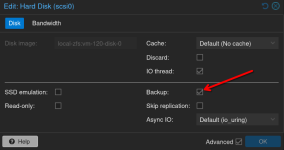
With this setup the backup of the W11 VM starts to save the entire 1TB nvme disk (rather expected as it is defined in W11 VM).
But as a result the backup also includes the nvme0n1p5 partition which is not relevant for the W11 OS and my backup directory runs out of space.
I search in Proxmox but I could not find how to just tave a backup of the selected partitions used by that W11 VM.
Is this possible using the web admin page or via line commands ?
Or better, can a VM be created so it uses only 'selected existing' partitions, assuming they all live on the same drive ?
Below details of the setup :
W11 VM configuration data:
Thanks for your help.
I have installed Proxmox VE 9.15 in a system on which W11 was installed on a 1TB nvme drive.
I have setup Proxmox config with a 1TB sata drive for the Proxmox OS and a backup directory, and the nvme drive with the existing W11 OS partitions and a partition for Linux VMs.
Practically the W11 VM uses the existing W11 partitions nvme0n1p1..nvme0n1p4, and the nvme0n1p5 partition is used for Linux VMs disk space.
With this setup the backup of the W11 VM starts to save the entire 1TB nvme disk (rather expected as it is defined in W11 VM).
But as a result the backup also includes the nvme0n1p5 partition which is not relevant for the W11 OS and my backup directory runs out of space.
I search in Proxmox but I could not find how to just tave a backup of the selected partitions used by that W11 VM.
Is this possible using the web admin page or via line commands ?
Or better, can a VM be created so it uses only 'selected existing' partitions, assuming they all live on the same drive ?
Below details of the setup :
Code:
lsblk
NAME                 MAJ:MIN RM   SIZE RO TYPE MOUNTPOINTS
sda                    8:0    0 953.9G  0 disk
├─sda1                 8:1    0  1007K  0 part
├─sda2                 8:2    0     1G  0 part /boot/efi
└─sda3                 8:3    0   952G  0 part
  ├─pve-swap         252:0    0     8G  0 lvm  [SWAP]
  ├─pve-root         252:1    0    96G  0 lvm  /
  ├─pve-data_tmeta   252:2    0   8.3G  0 lvm
  │ └─pve-data-tpool 252:4    0 815.4G  0 lvm
  │   └─pve-data     252:5    0 815.4G  1 lvm
  └─pve-data_tdata   252:3    0 815.4G  0 lvm
    └─pve-data-tpool 252:4    0 815.4G  0 lvm
      └─pve-data     252:5    0 815.4G  1 lvm
nvme0n1              259:0    0 931.5G  0 disk
├─nvme0n1p1          259:1    0   300M  0 part <- vfat SYSTEM
├─nvme0n1p2          259:2    0    16M  0 part <- MS Reserved
├─nvme0n1p3          259:3    0 249.5G  0 part <- ntfs Windows
├─nvme0n1p4          259:4    0     1G  0 part <- ntfs Recovery
└─nvme0n1p5          259:5    0 680.7G  0 part /mnt/pve/nvme_vms
W11 VM configuration data:
Code:
agent: 1
audio0: device=ich9-intel-hda,driver=spice
bios: ovmf
boot: order=sata1;net0
cores: 8
cpu: x86-64-v3
machine: pc-q35-10.1
memory: 8192
meta: creation-qemu=10.1.2,ctime=1768864563
name: VMW11
net0: virtio=BC:24:11:32:C3:AA,bridge=vmbr0
numa: 0
ostype: win11
sata1: /dev/disk/by-id/nvme-WD_Blue_SN5000_1TB_25031T802483,cache=writeback,discard=on,size=976762584K
scsihw: virtio-scsi-single
smbios1: uuid=fee96b98-d53d-441b-b895-80666ae65ab6
sockets: 1
tpmstate0: nvme_vms:300/vm-300-disk-0.qcow2,size=4M,version=v2.0
usb0: spice
vga: qxl
vmgenid: 51f64bf6-0c58-415f-b0d1-9724f81facb6
Thanks for your help.