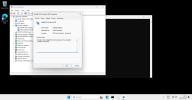
You have a different iGPU. Make sure your vfio.conf settings are correctly set to your iGPU vendor ID and the same goes for the arguments line in the vm config file.
I have an Asrock Z87 Extreme4 with a Core i5-4690K // HD Graphics 4600 and I'm running Proxmox 8.2. I've managed to passthrough the iGPU in a Windows 10 x64 using SeaBIOS (sound not working though) but I have a few questions that I would like to clarify. Let me share what I did first:
- My VM seems to be freezing at boot if I set the Display option to none (vga: none in config file). Why? I tried to access it through remote desktop but it does not go through.
- I've tried the OVMF (UEFI) route but it didn't work for me. I just could not get rid of the infamous 43 error code. My settings were the same as the ones I've shared here, except for the VM config, which had this instead:
Hello, I have an MSI Z97 Gaming 3 with an Intel I5 4690k as well, running Proxmox 9.1.4. After reproducing what you did in "Preparation", I am left with no mention whatsoever of my processor in the output of lspci -v. I've been struggling with passing my Intel iGPU to my Ubuntu VM for media transcoding using quicksync, as no guide seem to consider the possibility that the iGPU may not even appear as a VGA Compatible controller in the first place
[UPDATE - SOLVED]
For anyone still struggling as I did :
- Go to your BIOS settings, look for something called "Multi-Monitor" "Integrated Graphics" in Advanced Settings.
- If you get to choose between IGP and PEG, set it to IGP (Integrated Graphics Device)
- Save and reboot. Use a monitor with HDMI plugged to your motherboard (not your GPU) to check that the setting was applied (your monitor should turn on now that you have selected Integrated Graphics for boot)
- In Proxmox shell, lspci -v should now show your iGPU.