

Optimizing Windows VM performance on older hardware - settings advice needed

verishare

New Member
Oct 14, 2025
16
0
1
Hi everyone,

I'm looking for advice on the best Proxmox settings to get a Windows VM running smoothly on my setup.

Host specs:
  • CPU: Intel Core i5-3570 @ 3.40GHz (4 cores, 1 socket)
  • RAM: 32GB
  • Storage: SSD + HDD
  • GPU: AMD Radeon HD 7470/8470 (Caicos XT)
My Current VM configuration:
  • Memory: 8.00 GiB
  • Processors: 2 (1 socket, 2 cores) [x86-64-v2-AES]
  • BIOS: OVMF (UEFI)
  • Display: VirtIO-GPU (virtio)
  • Machine: pc-q35-11.0+pve2
  • SCSI Controller: VirtIO SCSI single
  • Hard Disk (scsi0): local-lvm, cache=writeback, discard=on, iothread=1, size=50G
  • Network: VirtIO, bridge=vmbr0, firewall=1
  • EFI Disk: local-lvm, efitype=4m, ms-cert=2023k, pre-enrolled-keys=1, size=4M
  • OS: Windows 10 IoT Enterprise LTSC 2021 (x64), installed via VirtIO drivers ISO (0.1.271)
I'd really appreciate guidance on the following:

1. CPU type/settings (default vs host vs kvm64 vs other) for best performance on this CPU
2. Storage configuration - are my current settings (writeback cache, discard, iothread) optimal for SSD performance?
3. Whether GPU passthrough is feasible with this GPU, and if it's worth doing given its age. Also, which GPU type should I select in the VM settings?
4. Any other tweaks specific to running Windows 10 (Any version) on this hardware

Any tips on optimizing performance for older hardware like this would be greatly appreciated. Thanks in advance for your help.

Screenshot:
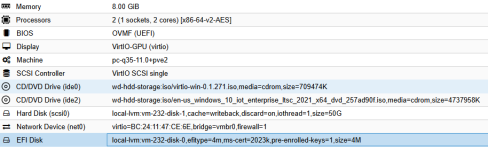
Proxmox_Windows_VM.PNG
 
1. v2-AES is perfect
2. Do you use ext4 or ZFS? What performance are you looking for? Reas? Write? Small files? Big files? A DB? Something with syn or asyc writes?
3. I mean, if it works, why not. On the other hand, do you make any use inside the VM of that GPU?
4. Nope, nothing you can do here. Windows is very resource intensive and slow.
 
  • Like
Reactions: news and verishare
Have you done owt inside the guest to tune Windows for running in a VM? Things like disabling the visual effects, killing hibernation and Fast Boot, setting the power plan to High Performance, deferring TRIM, and stripping out the background I/O that Windows does by default?

Without a real GPU your display is virtual so Windows will feel sluggish out of the box if it is still trying to render transparency, animations and thumbnail previews on a software display adapter. There is a fair bit you can do guest-side that makes a reight difference on older hardware like yours, especially with only 4 cores to play with.

Let us know what you have already tried and I will post the full list of what we recommend.
 
1. v2-AES is perfect
2. Do you use ext4 or ZFS? What performance are you looking for? Reas? Write? Small files? Big files? A DB? Something with syn or asyc writes?
3. I mean, if it works, why not. On the other hand, do you make any use inside the VM of that GPU?
4. Nope, nothing you can do here. Windows is very resource intensive and slow.
Thanks for clarification.
  1. I thought the "Host" type was the most appropriate option. Thanks for pointing that out and correcting me.
  2. I'm using ext4. This VM is mainly for running and testing software like Mystnodes, Honeygain, P2P VPN apps and some "always running and active software". I don't have any specific storage performance requirements, just looking for stable overall performance.
  3. The GPU isn't being used inside the VM for specific task at the moment.

Have you done owt inside the guest to tune Windows for running in a VM? Things like disabling the visual effects, killing hibernation and Fast Boot, setting the power plan to High Performance, deferring TRIM, and stripping out the background I/O that Windows does by default?

Without a real GPU your display is virtual so Windows will feel sluggish out of the box if it is still trying to render transparency, animations and thumbnail previews on a software display adapter. There is a fair bit you can do guest-side that makes a reight difference on older hardware like yours, especially with only 4 cores to play with.

Let us know what you have already tried and I will post the full list of what we recommend.
My Current System Performance Settings:
  • Set Visual Effects to Custom and enabled only "Smooth edges of screen fonts."
  • Disabled "Show animations in Windows."
  • Configured Power Options to High Performance.
  • Set Turn off hard disk to Never.
  • Set Turn off display to Never.
 
Have you done owt inside the guest to tune Windows for running in a VM?
I don't belive these "tunings" will do much, but sure they might help a little.
deferring TRIM
Windows will correctly recognize that it is a virtual SSD and run trim weekly to free up space. No tuning needed here IMHO.
Without a real GPU your display is virtual so Windows will feel sluggish out of the box
My VMs run fine without a GPU, even with RDP.
I thought the "Host" type was the most appropriate option.
Nope. The problem with host (besides that you can't easely move it to a differnt PVE) is that Windows does not get it is a VM and will do some wired security VM stuff (so VM in a VM) which will make the whole system very sluggish. That is why it is important to have it set to AES before(!) the installation of Windows.

I'm using ext4.
Ok, than L2ARC or SLOG are out. Totally fine, if you are fine with the current performance.

The GPU isn't being used inside the VM for specific task at the moment.
I would not bother than.
 
so iops reduction

The Large System Cache: Prioritising Throughput

Registry Path: HKEY_LOCAL_MACHINE\SYSTEM\CurrentControlSet\Control\Session Manager\Memory Management
Registry Key: LargeSystemCache | Type: REG_DWORD | Value: 1

Why Activate: By default, Windows prioritises application memory. Enabling this flips the logic, allowing the OS to use the majority of available RAM as a high-speed buffer for the file system.

Hibernation: Reclaiming Massive Space

Command: powercfg -h off

Why Deactivate: Hibernation creates a hidden file (hiberfil.sys) that is often as large as your total physical RAM. Turning this off deletes that file instantly as hibernating a VM doesn’t make sense.

DisableDeleteNotify: Managing Thin-Provisioned Overhead

Registry Path: HKEY_LOCAL_MACHINE\SYSTEM\CurrentControlSet\Control\FileSystem
Registry Key: DisableDeleteNotify | Type: REG_DWORD | Value: 1

Why Deactivate: In Virtual Machines, real-time "shrinking" of a thin-provisioned disk via TRIM creates constant CPU and I/O overhead. Setting this to 1 (Disabled) eliminates that real-time hit, deferring the task to the efficient weekly scheduled maintenance. (This can have a major impact on ZFS, Ceph & NFS backed disks performance and as such is advised.)

Legacy Metadata: 8.3 Names and Last Access Time

8.3 Short Names: NtfsDisable8dot3NameCreation in HKEY_LOCAL_MACHINE\SYSTEM\CurrentControlSet\Control\FileSystem | Type: REG_DWORD | Value: 1. Disabling this reduces total IOPS by eliminating DOS-compatible alias generation for new files.

Stripping Existing Names: To purge legacy aliases already stored in the Master File Table (MFT), use the following command:

Command: fsutil 8dot3name strip /s /v C:

Why: This recursively scans the volume and deletes existing short name entries. This streamlines the MFT and ensures the file system no longer manages dual naming conventions for old data.

Last Access Time: NtfsDisableLastAccessUpdate in HKEY_LOCAL_MACHINE\SYSTEM\CurrentControlSet\Control\FileSystem | Type: REG_DWORD | Value: 1.
This prevents Windows from writing a new timestamp every time you view a file, cutting background metadata writes significantly. Effectively prevents every read becoming a metadata write.


NTFS Memory Usage: Expanding the MFT Cache

Registry Path: HKEY_LOCAL_MACHINE\SYSTEM\CurrentControlSet\Control\FileSystem
Registry Key: NtfsMemoryUsage | Type: REG_DWORD | Value: 2

The Optimisation: By default, Windows allocates a conservative amount of paged pool memory to the Master File Table (MFT) cache. Setting this value to 2 (Enhanced) instructs the system to increase the look-aside list and cache size. This is particularly effective for systems with large amounts of RAM, as it keeps more file metadata in memory and reduces the frequency of physical disk reads when searching or accessing deep directory structures reducing disk IOPS
 
  • Like
Reactions: Kingneutron
Accelerating UI Responsiveness

Disabling Sponsored Content and Suggested Apps

Registry Path: HKEY_CURRENT_USER\Software\Microsoft\Windows\CurrentVersion\ContentDeliveryManager
Keys: SystemPaneSuggestionsEnabled, SilentInstalledAppsEnabled, SubscribedContent-338388Enabled | Type: REG_DWORD | Value: 0

Why Deactivate: Setting these to 0 stops Windows from downloading promotional thumbnails and "suggested" apps, reducing background network activity and speeding up the Start Menu.

UserPreferencesMask: The Performance Bitmask

Registry Path: HKEY_CURRENT_USER\Control Panel\Desktop
Registry Key: UserPreferencesMask | Type: REG_BINARY | Value: 90 12 03 80 10 00 00 00

The Optimisation: This is a low-level bit mask for menu fading and tool tip animation. Applying this specific mask bypasses wasteful eye-candy calculations at the core level of the Windows shell.

The 0ms Menu Delay: Instant Interaction

Registry Path: HKEY_CURRENT_USER\Control Panel\Desktop
Registry Key: MenuShowDelay | Type: REG_SZ | Value: 0

Why Deactivate: Windows adds a deliberate 400ms pause before displaying menus. Setting this string to 0 makes every menu element snap into existence the millisecond you click.

Disabling Animations and Transparency (newer OS)

VisualFXSetting in HKEY_CURRENT_USER\Software\Microsoft\Windows\CurrentVersion\Explorer\VisualEffects | Type: REG_DWORD | Value: 2 (Performance)

EnableTransparency in HKEY_CURRENT_USER\Software\Microsoft\Windows\CurrentVersion\Themes\Personalize | Type: REG_DWORD | Value: 0 (Disabled)

MinAnimate in HKEY_CURRENT_USER\Control Panel\Desktop\WindowMetrics | Type: REG_SZ | Value: 0 (Disabled)

Thumbnail Caching: Reducing Continuous Disk Scans

Registry Path: HKEY_CURRENT_USER\Software\Microsoft\Windows\CurrentVersion\Explorer\Advanced
Registry Key: IconsOnly | Type: REG_DWORD | Value: 1

Why Deactivate: By default, Windows scans and creates preview images for every media file and document in a folder, triggering massive read/write cycles on networked or virtual storage. Forcing the OS to display generic icons instead makes folder navigation instantaneous; by eliminating the need to read file headers for preview generation, you drastically reduce IOPS and prevent the constant reading the files for a thumbnail pictures.

Registry Path: HKEY_CURRENT_USER\Software\Microsoft\Windows\CurrentVersion\Policies\Explorer
Registry Key: DisableThumbnailCache | Type: REG_DWORD | Value: 1

The Optimisation: This prevents the creation of the hidden thumbs.db files within folders. In a visualised environment, this eliminates the constant metadata updates that occur whenever a directory is opened, significantly reducing file system overhead and IOPS.
 
  • Like
Reactions: Kingneutron
General System Performance & Virtualisation

Fast Boot: Ensuring a Clean State

Registry Path: HKEY_LOCAL_MACHINE\SYSTEM\CurrentControlSet\Control\Session Manager\Power
Registry Key: HiberbootEnabled | Type: REG_DWORD | Value: 0

Why Deactivate: Fast Boot saves the kernel state to disk. In a VM, Disabling it ensures every restart is a fresh initialisation.

VirtIO Networking: Maximum Throughput

Hardware Path: Device Manager > Network Adapters > VirtIO Ethernet Adapter

Tweak: In Advanced properties, set Receive/Transmit Buffers to value that gives you the correct mix for latency .(e.g., 1024 or 4096).

Multi-Queue Scaling: Set the Number of Queues to match the number of virtual processors (vCPUs) to allow parallel processing of network traffic as all vcpus can write to the network queue directly.

Virtualisation-Based Security (VBS)

Registry Path: HKEY_LOCAL_MACHINE\SYSTEM\CurrentControlSet\Control\DeviceGuard
Registry Key: EnableVirtualizationBasedSecurity | Type: REG_DWORD | Value: 0

Why Deactivate: This adds latency and requires nested virtualisation, which is significantly slower than native execution. Only have it enabled it you really use this function.

High Performance Power Plan: Eliminating CPU Latency

Command: powercfg -setactive 8c5e7fda-e8bf-4a96-9a85-a6e23a8c635c

Why Activate: Forcing the High Performance plan ensures the VM doesn try to do power management on the “imaginary” and keeps virtual CPU stays at its maximum frequency, resulting in lower latency during burst tasks as you don’t have to wait for the kvm to wake sleeping threads.
 
That is a lot of Ai slop. And like with most Ai slop, there is some truth to it, sometimes it does not apply and sometimes it does not understand context and makes it even worse. Too much for me to go trough all of them.

This one is good though:
Command: powercfg -h off

Why Deactivate: Hibernation creates a hidden file (hiberfil.sys) that is often as large as your total physical RAM. Turning this off deletes that file instantly as hibernating a VM doesn’t make sense.
although the LLM is wrong in that it "deletes that file instantly". You need to reboot ;)
 
That is a lot of Ai slop. And like with most Ai slop, there is some truth to it, sometimes it does not apply and sometimes it does not understand context and makes it even worse. Too much for me to go trough all of them.

This one is good though:

although the LLM is wrong in that it "deletes that file instantly". You need to reboot ;)
you need a reboot for all windows setting changes, As nothing in windows applies cleanly since windows 7, so it will delete the file instantly on boot when it reads the setting as it boots because you can't deactivate a page while is running.
 
Last edited:
+1 stop Ai slop. Even posts should be deleted (already reported) .
There is Windows forums for theses minor tweaks effects.
For informations :
Basic video drivers prevents Hibernation and Fast Boot out of the box, nothing to do.
VBS is not available with non Host cpu, nothing to do.

RDP in Windows 10 VM should be smoothly even with i5 3th Gen.
Cheap SSDs slow down Windows.
if not smoothly, smoothly must be defined.
 
  • Like
Reactions: IsThisThingOn
Sorry guys, my ISP has just implemented CGNAT on my home broadband, where my Proxmox home server is hosted. Since then, I've been having trouble accessing it remotely.

Quick question: does Proxmox not enable IPv6 by default? If that's the case, could someone show me how to enable IPv6 on the root node?

P.S. I didn't want to create a whole new thread just for such a simple question, so I hope it's okay to ask here.
 
Quick question: does Proxmox not enable IPv6 by default?
nope
someone show me how to enable IPv6 on the root node?
Since Proxmox does not use netplan or iface config, but some IMHO wired GUI config generator, I simply use 2001:balbablastaticIpv6/64 as IPv6 and fdblablabla as gateway. You could also change /etc/network/interfaces, but I have no idea if that gets overwritten and survives upgrades.
 
Windows will correctly recognize that it is a virtual SSD and run trim weekly to free up space. No tuning needed here IMHO.
One thing we've found is that, per https://forum.proxmox.com/threads/server-2022-defrag-trim-pegging-cpu-and-ram.161514/ and https://forum.proxmox.com/threads/windows-vm-requires-lots-of-ram-to-trim-larger-hard-disks.96288/, it can speed up TRIM tremendously to set discard_granularity. Edit the /etc/pve/qemu-server/VMID.conf file, to add line args: -set device.scsi0.discard_granularity=8388608 (or 8M). And by that I mean like "not 20-30 minutes" on slow hardware, depending on disk size.

But otherwise as long as the disk is marked as SSD and Discard in PVE the TRIM is automatic.

Then power off or reboot the VM through the PVE GUI so it picks up the change.
"deletes that file instantly"
I am pretty sure it does delete the file immediately...don't have one to test on, though I've run the command in the past. If one is trying to disable it, it's easy enough to find out of course. :)
 
What we need is a nice GUI to implement these changes with checkboxes and save/restore state. I ended up using Atlas OS mod and it made my Win11 feel as fast as Win7-64 on SSD.