

Optimizing Windows VM performance on older hardware - settings advice needed

verishare

New Member
Oct 14, 2025
15
0
1
Hi everyone,

I'm looking for advice on the best Proxmox settings to get a Windows VM running smoothly on my setup.

Host specs:
  • CPU: Intel Core i5-3570 @ 3.40GHz (4 cores, 1 socket)
  • RAM: 32GB
  • Storage: SSD + HDD
  • GPU: AMD Radeon HD 7470/8470 (Caicos XT)
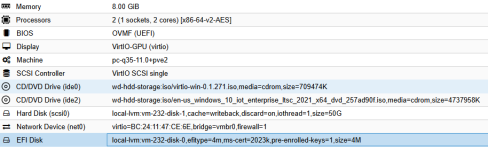
My Current VM configuration:
  • Memory: 8.00 GiB
  • Processors: 2 (1 socket, 2 cores) [x86-64-v2-AES]
  • BIOS: OVMF (UEFI)
  • Display: VirtIO-GPU (virtio)
  • Machine: pc-q35-11.0+pve2
  • SCSI Controller: VirtIO SCSI single
  • Hard Disk (scsi0): local-lvm, cache=writeback, discard=on, iothread=1, size=50G
  • Network: VirtIO, bridge=vmbr0, firewall=1
  • EFI Disk: local-lvm, efitype=4m, ms-cert=2023k, pre-enrolled-keys=1, size=4M
  • OS: Windows 10 IoT Enterprise LTSC 2021 (x64), installed via VirtIO drivers ISO (0.1.271)
I'd really appreciate guidance on the following:

1. CPU type/settings (default vs host vs kvm64 vs other) for best performance on this CPU
2. Storage configuration - are my current settings (writeback cache, discard, iothread) optimal for SSD performance?
3. Whether GPU passthrough is feasible with this GPU, and if it's worth doing given its age. Also, which GPU type should I select in the VM settings?
4. Any other tweaks specific to running Windows 10 (Any version) on this hardware

Any tips on optimizing performance for older hardware like this would be greatly appreciated. Thanks in advance for your help.

Screenshot:
Proxmox_Windows_VM.PNG
 
1. v2-AES is perfect
2. Do you use ext4 or ZFS? What performance are you looking for? Reas? Write? Small files? Big files? A DB? Something with syn or asyc writes?
3. I mean, if it works, why not. On the other hand, do you make any use inside the VM of that GPU?
4. Nope, nothing you can do here. Windows is very resource intensive and slow.
 
  • Like
Reactions: verishare
Have you done owt inside the guest to tune Windows for running in a VM? Things like disabling the visual effects, killing hibernation and Fast Boot, setting the power plan to High Performance, deferring TRIM, and stripping out the background I/O that Windows does by default?

Without a real GPU your display is virtual so Windows will feel sluggish out of the box if it is still trying to render transparency, animations and thumbnail previews on a software display adapter. There is a fair bit you can do guest-side that makes a reight difference on older hardware like yours, especially with only 4 cores to play with.

Let us know what you have already tried and I will post the full list of what we recommend.
 
  • Like
Reactions: verishare
1. v2-AES is perfect
2. Do you use ext4 or ZFS? What performance are you looking for? Reas? Write? Small files? Big files? A DB? Something with syn or asyc writes?
3. I mean, if it works, why not. On the other hand, do you make any use inside the VM of that GPU?
4. Nope, nothing you can do here. Windows is very resource intensive and slow.
Thanks for clarification.
  1. I thought the "Host" type was the most appropriate option. Thanks for pointing that out and correcting me.
  2. I'm using ext4. This VM is mainly for running and testing software like Mystnodes, Honeygain, P2P VPN apps and some "always running and active software". I don't have any specific storage performance requirements, just looking for stable overall performance.
  3. The GPU isn't being used inside the VM for specific task at the moment.

Have you done owt inside the guest to tune Windows for running in a VM? Things like disabling the visual effects, killing hibernation and Fast Boot, setting the power plan to High Performance, deferring TRIM, and stripping out the background I/O that Windows does by default?

Without a real GPU your display is virtual so Windows will feel sluggish out of the box if it is still trying to render transparency, animations and thumbnail previews on a software display adapter. There is a fair bit you can do guest-side that makes a reight difference on older hardware like yours, especially with only 4 cores to play with.

Let us know what you have already tried and I will post the full list of what we recommend.
My Current System Performance Settings:
  • Set Visual Effects to Custom and enabled only "Smooth edges of screen fonts."
  • Disabled "Show animations in Windows."
  • Configured Power Options to High Performance.
  • Set Turn off hard disk to Never.
  • Set Turn off display to Never.