[SOLVED] Help adding existing Volume to new container

Deakia

New Member
May 12, 2026
2
1
3
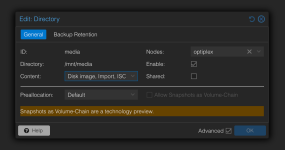
I have recently reset my Proxmox instance, and have a 1TB secondary drive that contained media, I had it mounted to /mnt/media using "Directory" in my datacenter's Storage settings.


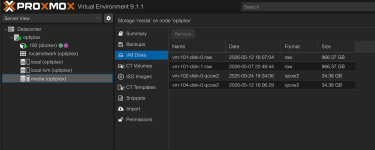
I just remounted the drive and it is not appearing under "CT Volumes" like it was before, but is under "VM Disks" instead, it's labelled "vm-101-disk-0.raw", the Container ID I had it attached to on the previous instance had the ID 101, but the new instance has a Container ID of 100, I have checked in "Resources" in the Container options, and can only find an option for creating a "Mount Point", which seemingly only creates a new one, and doesn't mount my existing .raw file.

I fear about overwriting the file.
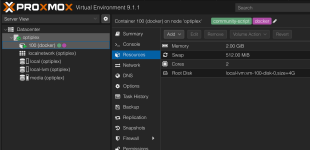
Screenshot 2026-05-12 at 17.51.34.pngScreenshot 2026-05-12 at 17.51.20.pngScreenshot 2026-05-12 at 17.50.38.png
 
AFAIK you have a few options here. Firstly attach that media drive & set it's PVE storage settings EXACTLY as it was previously.

Then do ONE of the following:

1. Recreate an LXC with the same <ctid> as before (101) . I believe you will have to do this CLI-only by creating /etc/pve/lxc/101.conf exactly as it was before. (A backup of that original file would be useful here!). Once done PVE "should" pickup that original .raw disk for that LXC.

2. Create a new LXC (GUI) with a different <ctid> as before (let's say 100), & then in the CLI copy/move the original .raw file to that <storage-path>/images/100/ directory. Then you need to remove the newly created vm-100-disk-0.raw & rename the original one (vm-101-disk-0.raw) to that exact newly created name: vm-100-disk-0.raw. (I've used these names as an example, yours may differ).

3. You can create a mountpoint (CLI-only) to an already existing .raw file by using the pct set <ctid> -mpX command.

In reality, you really should be recreating this LXC using the backup/s (you should have!) of this LXC!

(I must point out, I personally have never attempted any of the above on an LXC, although I have done the second option on a VM, not an LXC).

Good luck.
 
AFAIK you have a few options here. Firstly attach that media drive & set it's PVE storage settings EXACTLY as it was previously.

Then do ONE of the following:

1. Recreate an LXC with the same <ctid> as before (101) . I believe you will have to do this CLI-only by creating /etc/pve/lxc/101.conf exactly as it was before. (A backup of that original file would be useful here!). Once done PVE "should" pickup that original .raw disk for that LXC.

2. Create a new LXC (GUI) with a different <ctid> as before (let's say 100), & then in the CLI copy/move the original .raw file to that <storage-path>/images/100/ directory. Then you need to remove the newly created vm-100-disk-0.raw & rename the original one (vm-101-disk-0.raw) to that exact newly created name: vm-100-disk-0.raw. (I've used these names as an example, yours may differ).

3. You can create a mountpoint (CLI-only) to an already existing .raw file by using the pct set <ctid> -mpX command.

In reality, you really should be recreating this LXC using the backup/s (you should have!) of this LXC!

(I must point out, I personally have never attempted any of the above on an LXC, although I have done the second option on a VM, not an LXC).

Good luck.
Thank you so much!

I did a combination of the first two suggestions you made.

1. I cloned the Container, which allowed me to make the container CT 101, then after creating it I made a new mount point with the same drive storage (900GB in this case), that then appeared as vm-101-disk-2.raw, so I knew then that it had detected the other volumes.

2. I then opened the container's .conf file, and manually changed the mount point from mp101: media:101/vm-101-disk-2.raw,mp=/mnt/media,size=900G to mp101: media:101/vm-101-disk-0.raw,mp=/mnt/media,size=900G

I started the container up, which took around 30 seconds to actually start up, but then once it was booted, it's mounted completely fine, like it was before, with the entire filesystem intact.
 
  • Like
Reactions: gfngfn256