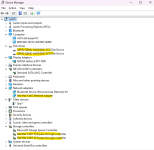
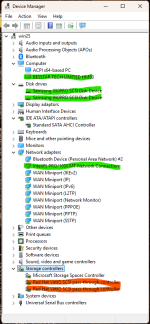
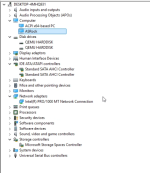
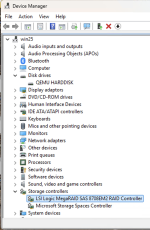
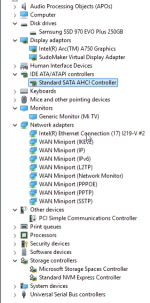
[SOLVED] Anti-Cheat KVM Settings

Could you DM me your whole VM's config? lol. If so feel free to scrub MACs/UUIDs. Game crash is the issue now. It worked ages ago.

Thanks crashes stopped. I am using this as a baseline; switching to VirtIO SCSI (was avoiding it to try and avoid "VM" identifiers) rendered Windows unbootable due to driver and I didn't care enough to fix it since it's a single-purpose VM, so I reinstalled W11 as well, afterwards things are OK.
 
  • Like
Reactions: ceghey
Mine stopped working for Star citizen. Was working about 5 months, now it says can't run in virtual machine :(

This is my conf, already had SMbios and -hypervisor.

Code:
affinity: 0-13
agent: 1
args: -cpu host,kvm=off,-hypervisor
balloon: 0
bios: ovmf
boot: order=scsi0
cores: 14
cpu: host
efidisk0: nvme250:vm-201-disk-0,efitype=4m,ms-cert=2023,pre-enrolled-keys=1,size=4M
hookscript: local:snippets/arc-startup-hook.sh
hostpci0: 0000:03:00,pcie=1,romfile=vbios.bin,x-vga=1
hostpci1: 0000:04:00,pcie=1
machine: pc-q35-10.0+pve1
memory: 52000
meta: creation-qemu=10.0.2,ctime=1757972376
name: SCVM
net0: e1000=68:05:CA:XX:XX:XX,bridge=vmbr0
numa: 0
ostype: win11
scsi0: nvme2TB:vm-201-disk-1,discard=on,iothread=1,size=50G,ssd=1
scsi1: nvme2TB:vm-201-disk-0,cache=writeback,discard=on,iothread=1,size=400G,ssd=1
scsihw: virtio-scsi-single
smbios1: uuid=eRedacted0,manufacturer=QlJPU0tZIEdBTUlORyBQUk8=,product=TElUTUFDSElORQ==,version=NC4yMA==,serial=MTgyOTM4ODI3Mw==sku=TE0tNDIw,family=QlJPU0tZR0FNSU5H,base64=1
sockets: 1
tpmstate0: nvme250:vm-201-disk-1,size=4M,version=v2.0
vga: none
vmgenid: 6d0443de-9640-46cc-8fcd-168bbcf1c903

Edit, Copied uuid line and Mac from that other post, removed added EAC and still won't run.

Edit again: uuid and smbios taken from host, args look like this now:
Code:
args: -cpu 'host,kvm=off,-hypervisor,hv_vendor_id=NV43FIX,hv_time=on,hv_relaxed=on,hv_vapic=on,hv_spinlocks=0x1fff,hv_reset=on,hv_vpindex=on,hv_runtime=on,hv_synic=on,hv_stimer=on,hv_crash=on,+invtsc'

still only "cannot run under virtual machine".

Turn your gaming pc into a server they said, it will be fun they said...
 
Last edited:
Well, I did everything you did, and it finally changed from QEMU Device to ASUS System Device. However, loading Halo Infinite still causes it to cancel out and close the game. I cannot activate "args: -cpu host,-hypervisor,kvm=off" as my computer gets stuck in the windows boot logo. Any other ideas I can try?

View attachment 59645
So when I added -hypervisor to my conf file, I had the same exact issue of proxmox vm getting stuck at the windows logo / boot every single time. It was driving me crazy.

Turns out running the following commands fixed it!:
Code:
echo "options kvm ignore_msrs=1" > /etc/modprobe.d/kvm.conf
update-initramfs -u
reboot

Why? I'm not too sure, but here is some explanation I found online:
Windows 10/11 frequently tries to read or write to Model Specific Registers (MSRs) that don't technically exist when you hide the hypervisor.
Without ignore_msrs=1, KVM throws an error back to the guest, which causes the Windows boot loader to panic and freeze on the logo. By toggling that host-side setting, you told Proxmox to just "ignore" those invalid calls, allowing Windows to finish its boot sequence while the -hypervisor flag successfully hides the VM status from Task Manager.

I don't know much else, but I hope it helps someone else out too!
 
Proxmox: Change SCSI Disk Name from "QEMU QEMU HARDDISK" to Real Drive + Extra Anti-Cheat Shielding (Windows 11 Gaming VM)

Using 101 as an example of the VMID. Replace every occurrence of 101 with your actual VMID.

Preliminary: Set your VMID for easy copy-paste
Bash:
VMID=101        # ← CHANGE THIS to your actual VMID

Step 1: Backup your VM config file
Bash:
cp /etc/pve/qemu-server/$VMID.conf /etc/pve/qemu-server/$VMID.conf.bak

Step 2: Add a Temporary IDE Drive
  • Add a second temporary disk attached as IDE (e.g. ide2: — 10-20 GB is plenty)
  • Start the VM and format the new drive as NTFS
  • Make sure it shows up and works in Windows
  • Shut down the VM cleanly
  • Important: When you later move your main drive to ide0: in Step 3, remove any existing device information (vendor=, product=, serial=) that may have been previously added to that line.

Step 3: Temporary Configuration Changes
Edit your VM’s .conf file and apply these changes:

Code:
# 1. Move main boot drive to IDE temporarily (remove vendor/product/serial if present)
ide0: local-zfs:vm-101-disk-1,cache=writeback,discard=on,iothread=1,size=200G,ssd=1

# 2. Switch controller to MegaRAID
scsihw: megasas

# 3. Move temp drive onto the MegaRAID controller
scsi0: local-zfs:vm-101-temp,size=...

# 4. Update boot order so the VM boots from IDE0 during driver install
boot: order=ide0;scsi0;net0

Step 4: Manual MegaRAID Driver Installation
  • Power on the VM
  • Windows 11 will detect the MegaRAID SAS controller but will NOT install drivers automatically
  • Download and unzip the official driver:
    Broadcom MegaRAID Windows Driver
  • Open Device Manager
  • Locate the unknown SCSI / Storage controller (yellow exclamation mark, usually under "Other devices")
  • Right-click it → Update driverBrowse my computer for drivers
  • Navigate to and select this exact folder:
    MR_WINDOWS_DRIVER_6.14_Point_SCGCQ01940230_v6.714.18.00\win_megaraid_drv_rel\win10_x64
  • Install the driver
  • Reboot the VM once
  • Confirm Windows boots and runs normally with the temp drive on MegaRAID

Step 5: Final Configuration – Move Main Drive Back to SCSI0 + Add Realistic Name
Shut down the VM and edit the config file one last time:

- Delete the temp drive line completely (or move it to another slot like ide2 if you want to keep it for now)
- Change the main Windows drive from `ide0:` **back to `scsi0:`** and add the parameters at the very end (device info only works on SCSI)

Samsung 990 PRO version (recommended)
The full line will now look exactly like this:
Code:
scsi0: local-zfs:vm-101-disk-1,cache=writeback,discard=on,iothread=1,size=200G,ssd=1,vendor=Samsung,product=990PRO,serial=S5P7NS0N123456789A

WD Black SN850X version (alternative)
The full line will now look exactly like this:
Code:
scsi0: local-zfs:vm-101-disk-1,cache=writeback,discard=on,iothread=1,size=200G,ssd=1,vendor=WD,product=SN850X,serial=WD2025SN850X7B9C3D2E

- Update boot order back to normal:
Code:
boot: order=scsi0;net0

Step 6: Save & restart VM completely
Code:
qm stop $VMID && qm start $VMID

Step 7: Verify
Code:
qm config $VMID | grep -E 'scsi0|scsihw|boot'

Result in Windows
Device Manager → Disk drives will now show:
  • Samsung 990PRO SCSI Disk Device
(or WD SN850X SCSI Disk Device)
+ the controller itself will appear as a real Broadcom MegaRAID SAS adapter.

Notes
  • Boot order is set in Step 3 so the VM boots correctly from IDE0 while installing the driver.
  • Main drive is now back on scsi0 under MegaRAID with realistic vendor/product/serial.
  • MegaRAID driver installed first for maximum stability.
  • You can delete the temp drive permanently once everything is working.
  • Serials are fake but follow real manufacturer patterns (no conflicts).
 
Last edited:
  • Like
Reactions: ceghey
Change SCSI Disk Name from "QEMU QEMU HARDDISK" to Real Drive
Thanks for good manual!

Screenshot 2026-03-14 134846.png
I replaced the disk and network adapter, but it still detects the virtual machine. I couldn't change the SСSI Controller to LSI because after the change, the boot disk is lost.
 
SMbios from host. Everything gone but disks.
LSI all variants - no Win11 drivers
megaraid & megaraid-gen2 - drivers yes but no disks
Sata - can't pass vendor/SN (screencap)
virtio, virtio-single, and pvscsi no longer boot with ",vendor=..." despite installed drivers, guess i have to reinstall that win11 vm but they all scream VM so i don't have much hope.
1773524909367.png
 
Thanks for good manual!

View attachment 96515
I replaced the disk and network adapter, but it still detects the virtual machine. I couldn't change the SСSI Controller to LSI because after the change, the boot disk is lost.
SMbios from host. Everything gone but disks.
LSI all variants - no Win11 drivers
megaraid & megaraid-gen2 - drivers yes but no disks
Sata - can't pass vendor/SN (screencap)
virtio, virtio-single, and pvscsi no longer boot with ",vendor=..." despite installed drivers, guess i have to reinstall that win11 vm but they all scream VM so i don't have much hope.
View attachment 96540
The LSI controller is outdated, and its drivers are unreliable. I’ve updated the guide in post #47 to use the MegaRAID controller instead, and included the correct driver link. I hadn’t tested the LSI controller before my initial post—but I have now, using the MegaRAID.

EDIT: JUMPED THE SHARK.... It is not booting currently... Working on it.
 
Last edited:
EDIT: JUMPED THE SHARK.... It is not booting currently... Working on it.
Yes, these drivers don't see the disks. I have two disks, and I set the boot drive as IDE0 and the second as SCSI1, and installed the drivers manually. But the second drive isn't visible.

Code:
ide0: local-lvm:vm-105-disk-1,size=200G,ssd=1
scsi1: satadisk2t:vm-105-disk-0,cache=writeback,discard=on,size=500G,ssd=1,vendor=Samsung,product=990PRO,serial=S5P7NS0N1234567810
scsihw: megasas
1773556698988.png
 
SMbios from host. Everything gone but disks.
LSI all variants - no Win11 drivers
megaraid & megaraid-gen2 - drivers yes but no disks
Sata - can't pass vendor/SN (screencap)
virtio, virtio-single, and pvscsi no longer boot with ",vendor=..." despite installed drivers, guess i have to reinstall that win11 vm but they all scream VM so i don't have much hope.
deep research, maybe some one can try this way? ))
 
Last edited:
MegaRAID SAS 8708EM2 emulation no longer boots under OVMF/UEFI after PVE 8 upgrade

Hi everyone,

I'm running into the classic "No Mapping found" / "No bootable device" issue in the UEFI shell when using the emulated MegaRAID SAS 8708EM2 controller (scsihw: megasas) with q35 + OVMF + Windows 11 guest.

After a lot of testing and digging through old threads, here's what I found about when/why it broke.

When did it stop working?
- Worked fine in Proxmox VE 7.x (especially 7.3 / 7.4 and earlier)
- Broke during / after upgrade to Proxmox VE 8.0 (released June 2023)
- Still broken in all 8.x versions (including latest 8.3+ as of 2026)

First big wave of reports appeared around mid-2024 after people upgraded from 7→8, and the problem has not been fixed upstream.

Exact cause
PVE 8 upgraded the underlying base from Debian 11 (Bullseye) → Debian 12 (Bookworm), which pulled in:
- Newer QEMU (from ~7.2 → 8.0+ / 9.x series)
- Newer pve-edk2-firmware / OVMF (edk2 builds from 2023+)

The newer OVMF no longer properly enumerates / maps disks attached to the legacy megasas emulation during UEFI firmware stage. You can still see the disk during Windows install (OS driver loads fine), but OVMF itself drops to shell with "No Mapping found" because it can't find the EFI partition/bootloader on the MegaRAID-attached disk.

Tried forcing older OVMF versions (3.20210831, 3.20220526, etc.) via custom pflash args — no reliable fix. The interaction is too tied to current QEMU behavior.

Questions for the community
- Has anyone found a patched QEMU or custom OVMF that actually makes megasas bootable under UEFI in PVE 8/9?
- Any other controllers (pvscsi, lsi, etc.) that spoof "RAID-like" hardware better without the boot bug?

Thanks for any input — this has been driving me crazy.

deep research, maybe some one can try this way? ))
I haven’t tried it myself, but I did fork the repository and used AI to translate everything into English: https://github.com/jaminmc/pve-emu-realpc.

It makes significant changes to Proxmox, so if you’re using it for anything beyond gaming, proceed with caution.

I’m curious—if you created a Proxmox VM, passed through your hardware to that VM, applied the modifications, and then ran your Windows VM through it, it might use more storage and RAM, but it would be safer than risking your main Proxmox installation. That said, it appears you can uninstall the custom .deb packages this tool creates.

 
deep research, maybe some one can try this way? ))
ye, kinda want to avoid changes to proxmox host if possible.
Yes, these drivers don't see the disks. I have two disks, and I set the boot drive as IDE0 and the second as SCSI1, and installed the drivers manually. But the second drive isn't visible.

Code:
ide0: local-lvm:vm-105-disk-1,size=200G,ssd=1
scsi1: satadisk2t:vm-105-disk-0,cache=writeback,discard=on,size=500G,ssd=1,vendor=Samsung,product=990PRO,serial=S5P7NS0N1234567810
scsihw: megasas
Guessing we'll probably have to pass a whole physical ssd to VM to avoid the controller hassle. Unfortunate none of the emulated real controllers work.
 
I don't know if it works, but here's something

https://github.com/Scrut1ny/AutoVirt/tree/main/patches

*I will not provide any guarantees or support even if the environment is damaged.

Apparently, VRChat worked

https://x.com/safeforwhanos/status/2032785858038792202?s=46

If this works out, it means that everything else you’ve done so far will have been for nothing.

Because there are virtual traces in the device path and elsewhere.

This patch removes any traces of the virtual machine from the device path by performing this substitution.

Code:
-#define QEMU_PCI_BRIDGE_VENDOR_ID_REDHAT  0x1B36
+#define QEMU_PCI_BRIDGE_VENDOR_ID_REDHAT  0x8086 /* Red Hat QEMU devices */

Since 0x1B36 corresponds to Red Hat, Inc., it’s easy to figure out.

https://devicehunt.com/view/type/pci/vendor/1B36

The fact that some people were able to launch the app successfully with this patch indicates that it’s checking the device ID rather than the appearance, so changing the appearance wouldn’t make much difference.
 
Last edited:
Guess we have to go with mod qemu. Passed real disk, real network but EAC still complains about VM
1773575373282.png
Also there's this pci controller 1af4:1003 i have no idea how to get rid of. edit: was Qemu Agent.

Probablyfor one of these:
1773576842947.png1773577051310.png

I don't know if it works, but here's something

https://github.com/Scrut1ny/AutoVirt/tree/main/patches

*I will not provide any guarantees or support even if the environment is damaged.

Apparently, VRChat worked

https://x.com/safeforwhanos/status/2032785858038792202?s=46

If this works out, it means that everything else you’ve done so far will have been for nothing.

Because there are virtual traces in the device path and elsewhere.

Built that in a debian13VM, copied to host and replaced with:

apt-mark hold qemu-system-x86_64 # Block updates
mv /usr/bin/qemu-system-x86_64 /usr/bin/qemu-system-x86_64.stock #backup original
ln -sf /usr/local/bin/qemu-stealth-x86_64 /usr/bin/qemu-system-x86_64 #link mod

but I'm getting kvm: -id: invalid option
guess we have to qm show VMID--pretty > stealthVMID.sh then reference modded qemu, but the how and what no idea yet.
 
Last edited:
QEMU (VM hardware) and EDK2 (BIOS) must be used together.

I don't think it will work with just one of them.
 
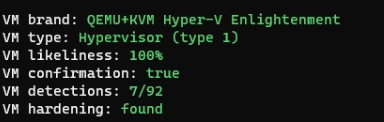
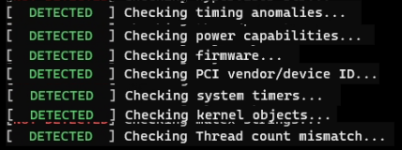
7 detections screencap is with pve stock qemu, just with real ssd & nic. No virtio drivers, performance is atrocious though.
Haven't managed to actually run the mod stuff yet.