HI i have the same problem. I have a 800 GB image qcow2 file, and I can't mount it to see the content.
I mounted the drive (Sata SSD) to /mnt/data so:
/dev/sda1 916G 101G 770G 12% /mnt/data
I want to open that vm-501.qcow2 so I can recover the files I have there.
That was a Proxmox VM Openmediavult.
I reinstalled the proxmox server and now I can't recover that qcow2.
I follow the steps and I was able to attach the vm-501-disk-0.qcow2 to the new VM I created.
But when I start the VM, the VM doens't boot up.
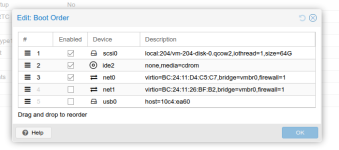
The boot order I put it on hard disk first, but nothing happens.
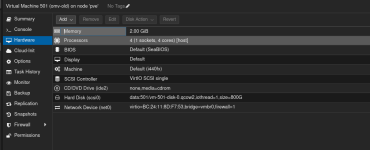
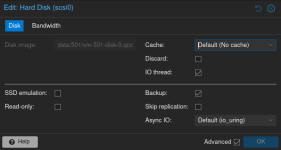
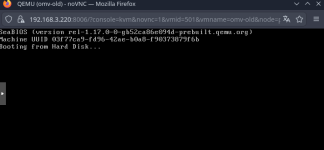
Is there a way to make it boot? Or a way to recover the content of the qcow2 file?
Thanks.
I mounted the drive (Sata SSD) to /mnt/data so:
/dev/sda1 916G 101G 770G 12% /mnt/data
Code:
root@pve:/mnt/data/images/501# df -h
Filesystem            Size  Used Avail Use% Mounted on
udev                  3.8G     0  3.8G   0% /dev
tmpfs                 782M  2.4M  779M   1% /run
/dev/mapper/pve-root   98G  9.3G   84G  11% /
tmpfs                 3.9G   34M  3.8G   1% /dev/shm
efivarfs              320K   66K  250K  21% /sys/firmware/efi/efivars
tmpfs                 5.0M     0  5.0M   0% /run/lock
tmpfs                 1.0M     0  1.0M   0% /run/credentials/systemd-journald.service
/dev/nvme0n1p2       1022M  8.8M 1014M   1% /boot/efi
tmpfs                 3.9G   96M  3.8G   3% /tmp
/dev/fuse             128M   16K  128M   1% /etc/pve
tmpfs                 1.0M     0  1.0M   0% /run/credentials/getty@tty1.service
/dev/sda1             916G  101G  770G  12% /mnt/data
tmpfs                 782M  4.0K  782M   1% /run/user/0
I want to open that vm-501.qcow2 so I can recover the files I have there.
That was a Proxmox VM Openmediavult.
I reinstalled the proxmox server and now I can't recover that qcow2.
I follow the steps and I was able to attach the vm-501-disk-0.qcow2 to the new VM I created.
But when I start the VM, the VM doens't boot up.
The boot order I put it on hard disk first, but nothing happens.
Is there a way to make it boot? Or a way to recover the content of the qcow2 file?
Thanks.