AMD iGPU passthrough ryzen 5 7640hs

hoenens

New Member
Feb 4, 2025
8
0
1
Hi,

I am getting started with Proxmox and it's so awesome! I got the Minisforum UM760 Slim and it packs quite a punch for it's size. With W11 on it i could play some games.
Now i got Proxmox on it and W11 in a vm.. but it does not use the igpu of the ryzen 5 7640hs.
How can i get this to work? I really hope someone has a solution to get this to work.

Grts
 
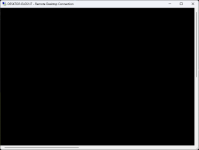
Ok, i got the igpu visible in w11 vm now, and was also able to install the drivers. BUT... once i turn off the default display and set the igpu as man gpu, vnc gives no screen, which is normal i did found out. I did RDP into the vm, but get a black screen. No idea what to do now haha.
 
Correct. But AFAIK with:

So he has no display for the VM, even RDP won't have output.


Edit: Just tried it myself. Setting VM Display to none, causes black screen in RDP.
Ok, so how can i fix this then to get screen and so w11 vm will use the igpu?
 
Ok, so how can i fix this then to get screen and so w11 vm will use the igpu?
I can't help you with iGPU for 2 reasons;

1. I have no experience with it - as I don't use/need it.
2. Every iGPU is different & has its' own procedure/s for correct passthrough.

As far as I can see _gabriel has correctly told you above - you will need to extract your own vbios - as appears on this site posted above - follow all their instructions. I was going to tell you to open an issue on that site, but I'm guessing you are OxygenGS & have already done so.

The only help I really gave you, is that as long as you have neither a display setup in the VM config nor a correctly passed through iGPU then RDP will remain blanked-out.

Good luck.
 
  • Like
Reactions: Johannes S
Correct. But AFAIK with:

So he has no display for the VM, even RDP won't have output.


Edit: Just tried it myself. Setting VM Display to none, causes black screen in RDP.
Here no black screen over RDP when Display set to None , but no GPU passthrough, Win10 SeaBIOS type.
is physical monitor plugged ?
 
Here no black screen over RDP when Display set to None , but no GPU passthrough, Win10 SeaBIOS type.
is physical monitor plugged ?
Yes the hdmi is connected but not used. I did remove the vm for now, tried all kinds of things but no succes. will try it later i guess. ty for your help guys!
 
Here no black screen over RDP when Display set to None , but no GPU passthrough, Win10 SeaBIOS type.
is physical monitor plugged ?
Interesting. I tried on Windows 11 (latest & fully updated) on Bios type: OVMF (UEFI), with display set to none (not default!), & RDP is blacked out. Shutdown & reset display to default, start VM & RDP fully visual again.
I have no physical monitor on my node at all, although my CPU does have an iGPU.

@_gabriel In your Windows 10 Device Manager, what Display adaptors are listed?
 
Interesting. I tried it again & can confirm RDP will only display output if I have display set to Default.

Only one : Microsoft Remote Display Adapter.
I have both when RDP works!

Maybe spin up a Windows 11 Pro & see what you get?
 
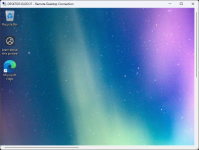
Can you post screenshot ? is RDP blue top bar with just a black screen ?
The plot thickens. I think we should compare complete configs:
Code:
# With display set to none:

>qm config 106
agent: 1
bios: ovmf
boot: order=ide1
cores: 4
cpu: host
description: DESKTOP-ELGS1J7
efidisk0: Storage:106/vm-106-disk-0.qcow2,efitype=4m,pre-enrolled-keys=1,size=528K
ide0: Storage:iso/virtio-win.iso,media=cdrom,size=707456K
ide1: Storage:106/vm-106-disk-1.qcow2,cache=writeback,discard=on,size=64G
machine: pc-q35-9.0
memory: 8192
meta: creation-qemu=9.0.2,ctime=1737441895
name: Windows11
net0: e1000=BC:24:11:C9:67:60,bridge=vmbr0,firewall=1
numa: 0
ostype: win11
scsihw: virtio-scsi-single
smbios1: uuid=e14ea1c9-8d3e-401e-ad08-1901a9469626
sockets: 1
tpmstate0: Storage:106/vm-106-disk-2.raw,size=4M,version=v2.0
vga: none
vmgenid: 24fd3db8-398f-445d-8641-2fe9b9c69ca0

If you provide your config, we may be able to narrow it down.
 

Attachments

  • Working.png
    Working.png
    181 KB · Views: 4
  • Not Working.png
    Not Working.png
    5.3 KB · Views: 4
I can't reproduce black screen with
Code:
bios: ovmf
boot: order=scsi0;ide2;net0
cores: 4
cpu: host
ide2: boot-zfs-miroir-3-ssd:iso/win11_24H2_26100.1742_Octobre_2024_x64.iso,media=cdrom,size=5722400K
machine: pc-q35-8.1
memory: 4096
meta: creation-qemu=8.1.5,ctime=1738792752
name: win11-efi
net0: virtio=BC:24:11:E4:EE:ED,bridge=vmbr0
numa: 0
ostype: win11
scsi0: zfs_bay3sn17:vm-9011-disk-0,backup=0,discard=on,iothread=1,size=64G
scsihw: virtio-scsi-single
smbios1: uuid=4eee85c6-cdab-4fa8-b969-ae65ae2579e8
sockets: 1
vga: none
vmgenid: b9316274-e0f3-45d4-a7bb-1ef30333f8d5
 
The only real difference I can see is: pc-q35-8.1 vs pc-q35-9.0 why are you using an older version?

Other things that maybe worth looking into;

1. Windows 11 versions.
2. (unlikely: ) Proxmox host CPU. (Mine is i7-13700h).
3. RDP client on the PC you are accessing it from. (Mine is a fully updated Windows 11 Pro, tried on 2 machines).
4. Local Resources (being shared) from client. (I have only Printers & Clipboard).
5. Display settings within RDP.
 
OK I've discovered what causes this!

In the RDP (client) Windows settings - if the Display settings are not changed/set to max/Use all of my monitors then you get blank screen.

Once I messed with these - (I set Use all of my monitors) - I got a fully-visible RDP session.

After this, I could no longer reproduce this fault whatever display settings I used in the RDP client. So I'm guessing that once the Microsoft Remote Display Adapter got a resolution setting - he no longer acted up.

Learnt something for the day.
Maybe another user will use this one day!
 
  • Like
Reactions: _gabriel