[SOLVED] Proxmox VE 8.1: Recover data from vm-103-disk-1.qcow2

ReD1991

New Member
Apr 9, 2024
21
2
3
Hi all,

I'm trying to recover all possible data, because my proxmox install became corrupted and I had to reinstall. I was able to reclaim all backups from the backup HDD and got the VMs up and running again.

I had/have a VM103 running debian 12 with CasaOS, I'm terrible with command based systems so I use CasaOS as a GUI for installing docker containers. My previous Proxmox install only had 1 SSD (for proxmox root and VMs) and 1 HDD (for backups and additional datastorage for CasaOS). As said I was able to mount the directory with the backups and get my VMs back up and running again. I now would also like to get this data back, it should be still somewhere on this HDD as it says 36% used. I just don't know how to

I mounted the drive with /etc/fstab to /mnt/HDD4TB.
Now when I ls /mnt/HDD4TB I get the following directories: dump, images, lost+found, private, snippets and template.

As I just mounted the HDD in VM103 with Hardware >> Add >> Hard Disk I don't know where to find the data, is it in one of these directories or somewhere else.

When I ls /mnt/HDD4TB/images I get 103, dump, images, private, snippets and template.
When I ls /mt/HDD4TB/images/103 I get a file called vm-103-disk-1.qcow2, I found online that the .qcow2 can be recovered into the vm-103-disk-1.RAW.

How to continue? Please let me know.


Kind regards,
ReD1991
 
I mounted the drive with /etc/fstab to /mnt/HDD4TB.
Now when I ls /mnt/HDD4TB I get the following directories: dump, images, lost+found, private, snippets and template.
This directory structure is indicative of previouse PVE using the disk as a storage device. The directories you listed are created automatically by PVE when you add the disk as storage to hypervisor.

Its unclear whether you mounted in the PVE or VM. Assuming it was PVE: since you mounted the disk via fstab, your next step should have been to add "Directory" type "Storage Pool" in PVE. Then, if your VM ID is still 103, you could have "qm disk rescan" to bring the "qcow" from images/103 into your VM hardware panel.

As I just mounted the HDD in VM103 with Hardware >> Add >> Hard Disk I don't know where to find the data, is it in one of these directories or somewhere else.
I would undo this before doing anything else.


Blockbridge : Ultra low latency all-NVME shared storage for Proxmox - https://www.blockbridge.com/proxmox
 
  • Like
Reactions: ReD1991
I would undo this before doing anything else.


Blockbridge : Ultra low latency all-NVME shared storage for Proxmox - https://www.blockbridge.com/proxmox
I meant that this is what I did in my previous build to add the disk to the Debian 12 VM, so before the reinstallation of proxmox. I have not done anything yet. I only found the location of the .qcow2 file.

So what I did today was rebuild the VM from the backup which was also stored on this HDD. Now I would like to get the data (when I was using it as a storage device) back to the VM so that I can have everything as it was.
 
Last edited:
I meant that this is what I did in my previous build to add the disk to the Debian 12 VM, so before the reinstallation of proxmox. I have not done anything yet. I only found the location of the .qcow2 file.
Sounds good, proceed with the steps I outlined in the first portion of previous reply.

good luck


Blockbridge : Ultra low latency all-NVME shared storage for Proxmox - https://www.blockbridge.com/proxmox
 
Sounds good, proceed with the steps I outlined in the first portion of previous reply.

good luck


Blockbridge : Ultra low latency all-NVME shared storage for Proxmox - https://www.blockbridge.com/proxmox
I don't know how to continue, could you go through it step-by-step?

When I go to Datacenter >> Storage >> Add >> Directory
I don't see the option to add storage pool, or I don't know what to do.
 
Sounds good, proceed with the steps I outlined in the first portion of previous reply.

good luck


Blockbridge : Ultra low latency all-NVME shared storage for Proxmox - https://www.blockbridge.com/proxmox
With your directions and some help from chatGPT I was able to figure it out:

What I did:

- Datacenter >> Storage >> Add >> Directory
- In Directory ID = HDD4TB-Storage | Directory = /mnt/HDD4TB | Content = Disk image >> Add
- SSH into my proxmox >> qm disk rescan --> the vm-103-disk-1.qcow2 appeared in the HDD4TB-storage storage pool under VM-Disks tab.

- VM103 under Hardware now shows a UNUSED DISK. Click on the disk and press the Edit button, don't change anything just press Add.
- It now appears as Hard Disk (scsi1) and I'm able to view the contents.
 
  • Like
Reactions: bbgeek17
HI i have the same problem. I have a 800 GB image qcow2 file, and I can't mount it to see the content.
I mounted the drive (Sata SSD) to /mnt/data so:

/dev/sda1 916G 101G 770G 12% /mnt/data

Bash:
root@pve:/mnt/data/images/501# ls -lh /mnt/data/
total 36K
drwxr-xr-x 2 root root 4.0K Mar 20 20:01 dump
drwxr-xr-x 4 root root 4.0K Mar 21 13:37 images
drwx------ 2 root root  16K Mar 20 20:01 lost+found
drwxr-xr-x 2 root root 4.0K Mar 20 20:01 private
drwxr-xr-x 2 root root 4.0K Mar 20 20:01 snippets
drwxr-xr-x 4 root root 4.0K Mar 20 20:01 template
root@pve:/mnt/data/images/501#

root@pve:/mnt/data/images/501# ls -lh /mnt/data/images/501/
total 97G
-rw-r----- 1 root root 801G Mar 21 10:51 vm-501-disk-0.qcow2
root@pve:/mnt/data/images/501#

I want to open that vm-501.qcow2 so I can recover the files I have there.
That was a Proxmox VM Openmediavult.

I reinstalled the proxmox server and now I can't recover that qcow2.

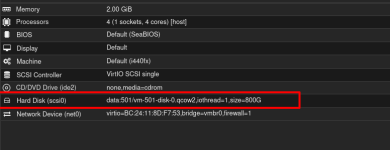
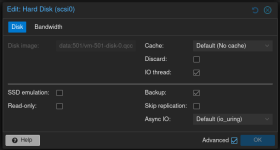
I follow the steps and I was able to attach the vm-501-disk-0.qcow2 to the new VM I created.
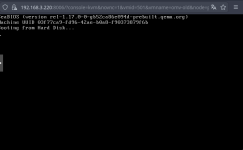
But when I start the VM, the VM doens't boot up.
The boot order I put it on hard disk first, but nothing happens.

1774120095052.png

1774120145093.png


1774120122041.png


Is there a way to make it boot?

Thanks.
 
Last edited:
Hi @smirandac1978 , welcome to the forum.

As a general advice - it is recommended to open your own thread rather than bumping something from two years ago.

To answer your question - its impossible to know whether you can make a VM boot from this disk because we don't know what is the structure of the disk.

You can learn more by doing :
fdisk -l /path/file.qcow

You can also create a new VM with fresh OS install, add this disk as a secondary and then mount it inside the VM. This will allow you to recover files.

Or you can simply mount the QCOW as following:
qemu-nbd --connect=/dev/nbd0 $myimage
fdisk -l /dev/nbd0
mount /dev/nbd0p1 /mnt/tmp


Blockbridge : Ultra low latency all-NVME shared storage for Proxmox - https://www.blockbridge.com/proxmox
 
  • Like
Reactions: UdoB