Hello all,
I am using Proxmox VE 8.4.8 on a system with two Xeon cpus, 256 GB of RAM, and 4x 2TB nvme drives. I am using LVM-Thin storage. I have a Windows Server 2008 32-bit Data Center VM with 32 GB allocated that recognizes the full 32 GB just fine (as an aside, I know the DC version of the 32 bit does some weird stuff to recognize more than 3.40 GB; I just wanted to point out that I had another 32-bit type VM that wasn't limited to 2 GB available).
When I try to make a Windows 10 Pro 32-bit VM, I set it to allocate 4 GB of RAM. I am aware of the 32-bit limitation - it usually says "4.00 GB (3.40 GB usable)" under computer properties, which is fine.
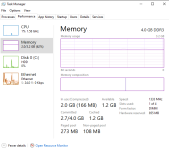
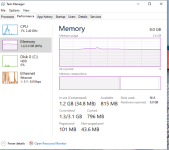
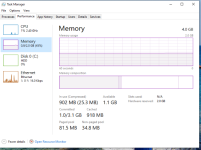
However, it says "4.00 GB (2.00 GB usable)" and I am unable to make it use the normal ~3.40 GB. I read somewhere that it could be because I am using SeaBIOS, but I was unable to get past POST (couldn't boot to the Windows install ISO) when I enabled OVMF (UEFI) with the TPM set to both v1.2 and v2.0, and with the EFI disk set to even try that.
Things I have tried:
- Reinstalled the OS multiple times with both the retail disc I have and the ISO from Microsoft
- Disabled the memory ballooning device
- Tried with and without the quemu agent installed
- Used the latest Win 10 ISO image from Microsoft
- Fully updated the copy of Win 10 via Windows Update
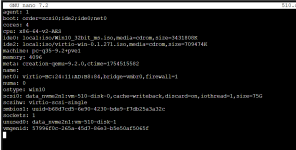
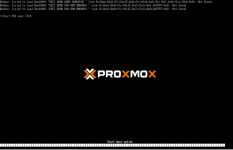
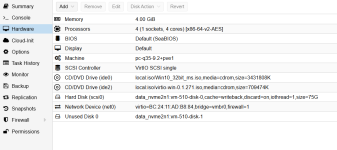
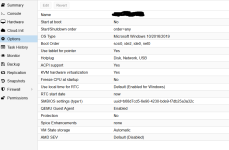
I have added screenshots of my config for the SeaBIOS VM, but I also added the screenshot of the error I get when I try to make another VM in OVMF (UEFI) mode.
In UEFI mode I tried the following:
- The tutorial listed here: https://www.youtube.com/watch?v=js_Xoa0f8zM
- Disabled SecureBoot in the boot manager
- TPM device disabled, v1.2, and v2.0
- With and without the EFI disk
Any help in the right direction to get the ~3.40 GB of RAM working would be much appreciated, whether its SeaBIOS, UEFI, or otherwise. Thank you!
I am using Proxmox VE 8.4.8 on a system with two Xeon cpus, 256 GB of RAM, and 4x 2TB nvme drives. I am using LVM-Thin storage. I have a Windows Server 2008 32-bit Data Center VM with 32 GB allocated that recognizes the full 32 GB just fine (as an aside, I know the DC version of the 32 bit does some weird stuff to recognize more than 3.40 GB; I just wanted to point out that I had another 32-bit type VM that wasn't limited to 2 GB available).
When I try to make a Windows 10 Pro 32-bit VM, I set it to allocate 4 GB of RAM. I am aware of the 32-bit limitation - it usually says "4.00 GB (3.40 GB usable)" under computer properties, which is fine.
However, it says "4.00 GB (2.00 GB usable)" and I am unable to make it use the normal ~3.40 GB. I read somewhere that it could be because I am using SeaBIOS, but I was unable to get past POST (couldn't boot to the Windows install ISO) when I enabled OVMF (UEFI) with the TPM set to both v1.2 and v2.0, and with the EFI disk set to even try that.
Things I have tried:
- Reinstalled the OS multiple times with both the retail disc I have and the ISO from Microsoft
- Disabled the memory ballooning device
- Tried with and without the quemu agent installed
- Used the latest Win 10 ISO image from Microsoft
- Fully updated the copy of Win 10 via Windows Update
I have added screenshots of my config for the SeaBIOS VM, but I also added the screenshot of the error I get when I try to make another VM in OVMF (UEFI) mode.
In UEFI mode I tried the following:
- The tutorial listed here: https://www.youtube.com/watch?v=js_Xoa0f8zM
- Disabled SecureBoot in the boot manager
- TPM device disabled, v1.2, and v2.0
- With and without the EFI disk
Any help in the right direction to get the ~3.40 GB of RAM working would be much appreciated, whether its SeaBIOS, UEFI, or otherwise. Thank you!
Attachments
Last edited: