

Hi everyone, I'm hitting a wall with a specific display issue in my nested lab and was wondering if anyone has seen this before.
My setup is basically Proxmox VE (9.1.2) running as a VM inside ESXi 7.0.3, all hosted on AMD EPYC 7443P / 7343 (Zen3). I've been running this exact configuration on Intel and older AMD Zen2 (7002 series) hosts for a while without any problems.
However, after moving to Zen3, my restored Windows 2022 Server VMs won't show anything in the console.
The specific symptom is that the Proxmox noVNC console just hangs at:
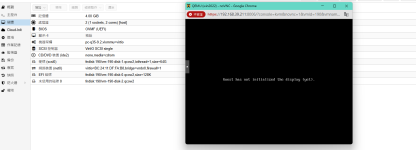
Here's the kicker: The VM is actually booting fine. I can ping it and log in via RDP with full functionality—it's just the console display that refuses to initialize.
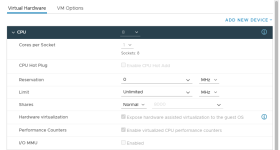
In terms of settings, I have "Hardware assisted virtualization" exposed in ESXi. On the PVE side, the VM is using
I've tried cycling through different display adapters like
It seems like a very specific conflict between Zen3 nested virt and how these existing Windows images initialize their display drivers. Has anyone encountered this in a Zen3 environment? Any suggestions on CPU flags or specific tweaks to get the console back?
Appreciate any help!
My setup is basically Proxmox VE (9.1.2) running as a VM inside ESXi 7.0.3, all hosted on AMD EPYC 7443P / 7343 (Zen3). I've been running this exact configuration on Intel and older AMD Zen2 (7002 series) hosts for a while without any problems.
However, after moving to Zen3, my restored Windows 2022 Server VMs won't show anything in the console.
The specific symptom is that the Proxmox noVNC console just hangs at:
Guest has not initialized the display (yet)
Here's the kicker: The VM is actually booting fine. I can ping it and log in via RDP with full functionality—it's just the console display that refuses to initialize.
In terms of settings, I have "Hardware assisted virtualization" exposed in ESXi. On the PVE side, the VM is using
host CPU type, OVMF (UEFI) BIOS, and pc-q35-9.2 machine type.I've tried cycling through different display adapters like
std and VMware compatible, but nothing seems to trigger the display. Interestingly, it happens with these restored backups, and only on Zen3 hardware.It seems like a very specific conflict between Zen3 nested virt and how these existing Windows images initialize their display drivers. Has anyone encountered this in a Zen3 environment? Any suggestions on CPU flags or specific tweaks to get the console back?
Appreciate any help!
